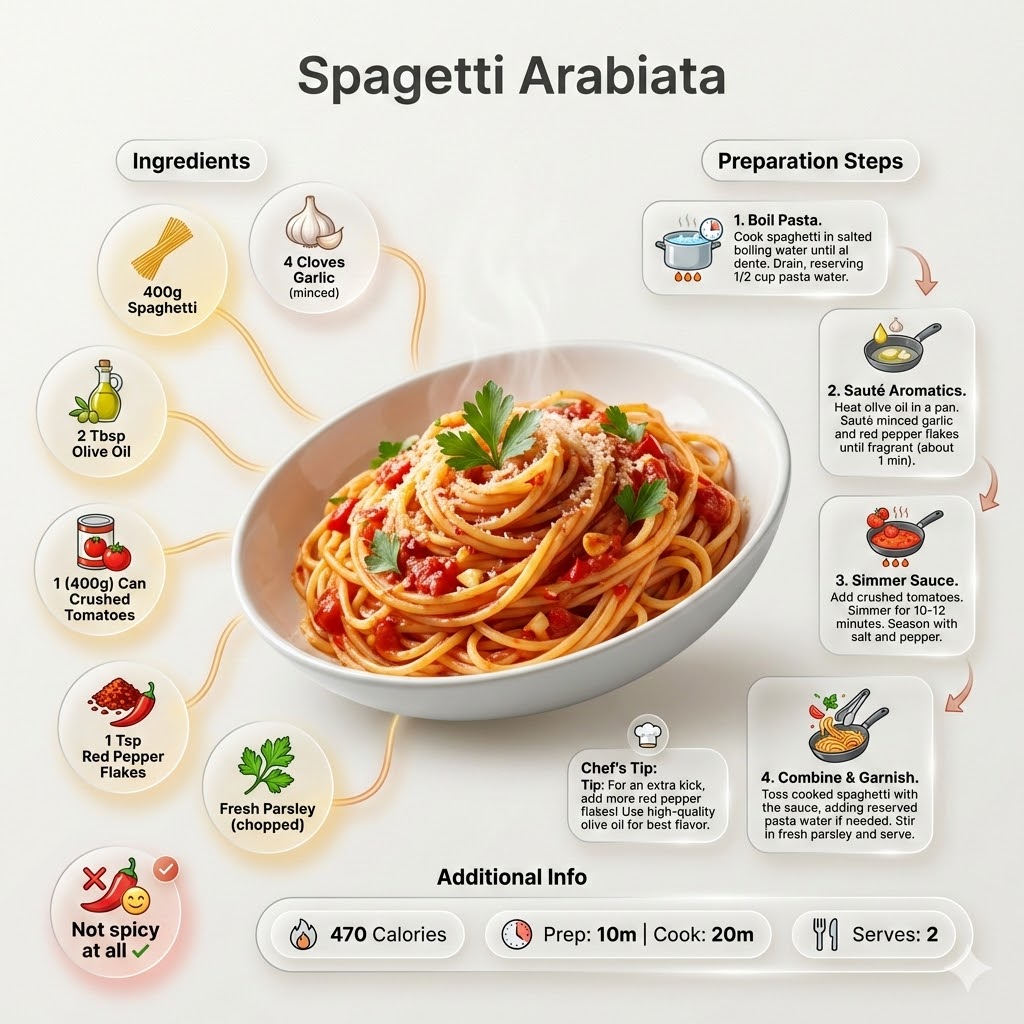
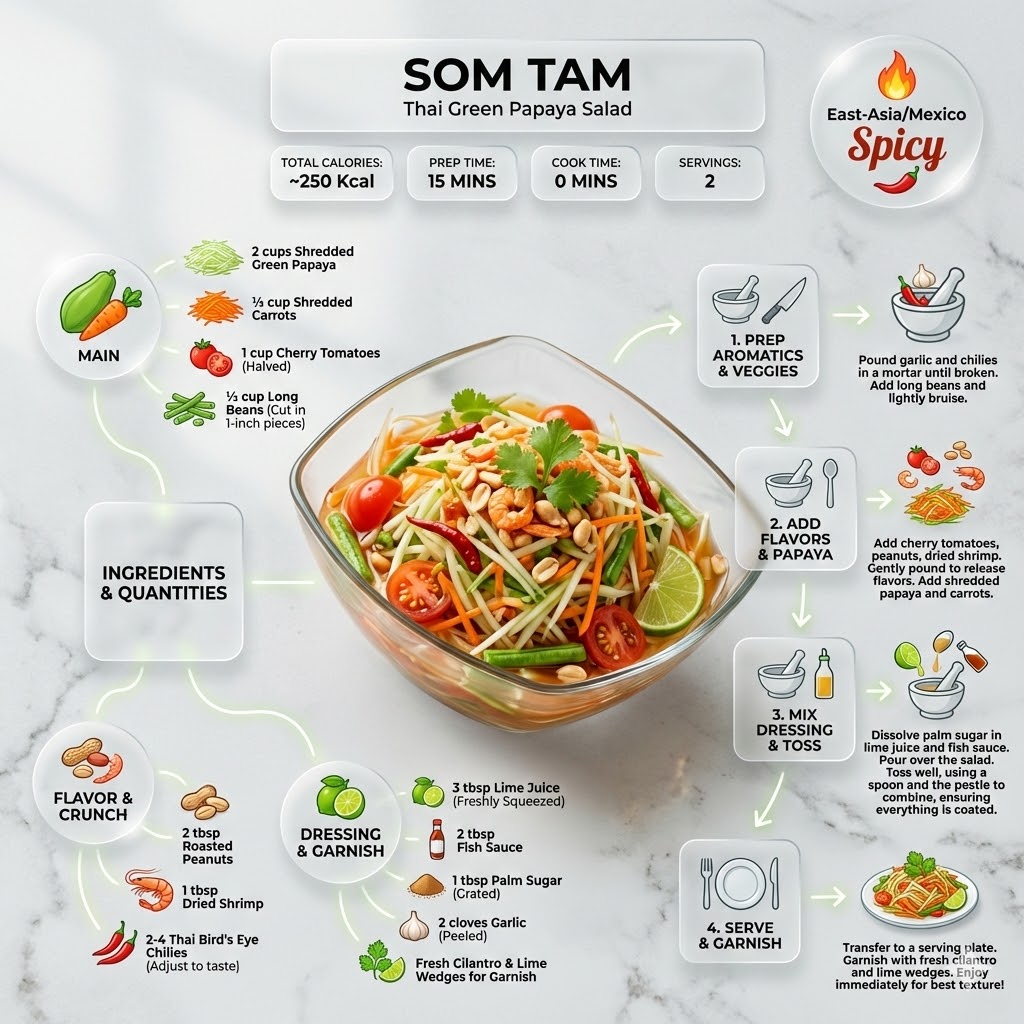
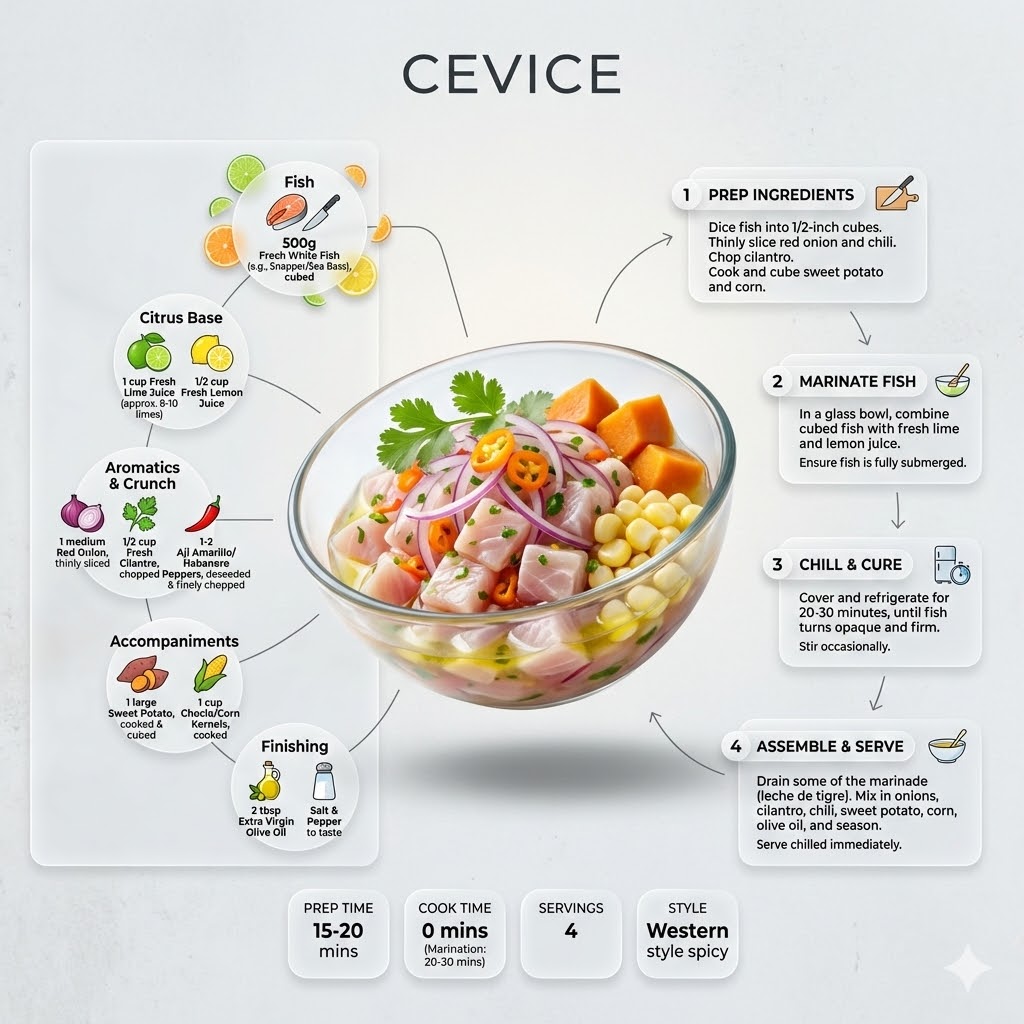
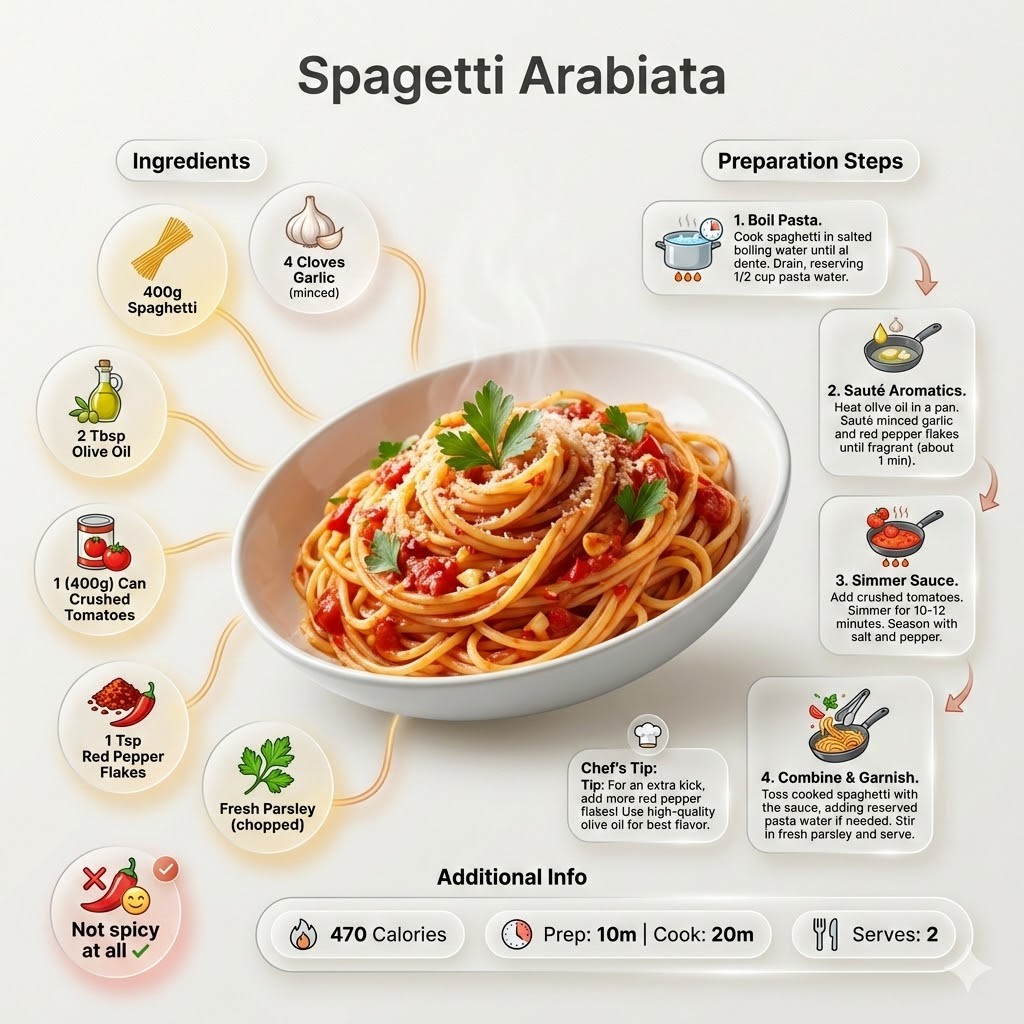
Ultra-clean modern recipe infographic for {{Dish:[dishes]}}. Adapt the recipe to accommodate the following dietary restriction: {{Dietary Option: Standard, Vegan, Vegetarian, Gluten-Free, Dairy-Free, Low-Carb}}. Provide a clear list of ingredients, necessary substitutions.
Showcase the food in a visually appealing finished form—sliced, plated, or portioned—floating slightly in perspective or angled view. Arrange ingredients, steps, and tips around the dish in a dynamic editorial layout. Ingredients Section: Include icons or mini illustrations for each ingredient with quantities arranged in clusters or circular flows connected to the dish. Steps Section: Show preparation steps with numbered panels, arrows, or lines, forming a logical flow. Include small cooking icons (knife, pan, oven, timer). Additional Info: Total calories, prep/cook time, servings, and {{Spice Level: *Default, Not spicy at all, Western style spicy, Spicy, East-Asia/Mexico Spicy}}—displayed as clean bubbles or badges. Visual Style: Editorial lifestyle food photography, vibrant natural colors, soft drop shadows, clean vector icons, and glassmorphism for panels. Composition: {{Dish}} as hero visual, clear hierarchy, and enough negative space to keep the design airy. Lighting: Soft, natural studio lighting with a minimal textured background. Output: 1080×1080, ultra-crisp, social-feed optimized.",
  "title" : "Modern Recipe Editorial Infographic",
  "updated" : "2026-04-20 17:45:02"
}
Prompt-Anleitung
Ideal für
Einen strukturierten, wiederverwendbaren Prompt statt eines leeren Chats als Ausgangspunkt nutzen.
Den Prompt an eigene Eingaben anpassen, während die ursprüngliche Absicht erhalten bleibt.
Workflows rund um Creative & Visuals, Kitchen & Food.
So wird's verwendet
Die vollständige Prompt-Vorlage kopieren.
Jede Variable durch den eigenen Kontext ersetzen oder eine der vorgeschlagenen Optionen wählen.
Den fertiggestellten Prompt in ChatGPT, Claude, Gemini oder einen anderen KI-Assistenten einfügen.
Default, Not spicy at all, Western style spicy, Spicy, East-Asia/Mexico Spicy
Beispiel-Einstieg
Ultra-clean modern recipe infographic for [dishes]. Adapt the recipe to accommodate the following dietary restriction: Standard. Provide a clear list of ingredients, necessary substitutions.
Showcase the food in a visually appealing finished form—sliced, plated, or portioned—floating slightly in perspective or angled view. Arrange ingredients, steps, and tips around the dish in a dynamic editorial layout. Ingredients Section: Include icons or mini illustrations for each ingredient with quantities arranged in clusters or circular flows connected to the dish. Steps Section: Show preparation steps with numbered panels, arrows, or lines, forming a logical flow. Include small cooking icons (knife, pan, oven, timer). Additional Info: Total calories, prep/cook time, servings, and Default—displayed as clean bubbles or badges. Visual Style: Editorial lifestyle food photography, vibrant natural...
So funktionieren Variablen
Variablen-Syntax
Variablen sind in {{ und }} eingeschlossen und folgen diesem Muster:
{{variable name: option1, option2, option3}}
Vordefinierte Variablen
Eine Auswahl kann auf eine vordefinierte Variablenliste per eckige Klammern verweisen. Diese erscheinen in [Orange] und bieten häufig verwendete Werte wie Farben, Töne oder Sprachen.
{{Tone: [tones]}}
Eigene Auswahllisten
Du kannst auch eine durch Kommas getrennte Inline-Liste mit Optionen angeben.
Tipp: Du brauchst die PUCO-App nicht, um diese Prompts zu verwenden! Kopiere einfach die Vorlage und ersetze jeden {{…}}-Abschnitt direkt in ChatGPT, Claude, Gemini oder einem anderen KI-Assistenten durch eigenen Text.
Diesen Prompt in Sekunden nutzen – nicht Minuten
PUCO für Mac installieren: Tastenkürzel drücken, Smart Form ausfüllen, in ChatGPT, Claude oder Gemini einfügen. Jede Variable wird zu einem kuratierten Dropdown. Deine letzten Werte werden gespeichert.
Transforms an uploaded image into a highly detailed 3D plastic building Lego block diorama while preserving the original composition, subjects, and lighting.