Ideal für
- Einen strukturierten, wiederverwendbaren Prompt statt eines leeren Chats als Ausgangspunkt nutzen.
- Den Prompt an eigene Eingaben anpassen, während die ursprüngliche Absicht erhalten bleibt.
- Workflows rund um Creative & Visuals.

Erstellt handgezeichnete, aquarellartige Lern-Infografiken, die komplexe Themen durch visuelles Storytelling und Sketchnotes erklären.
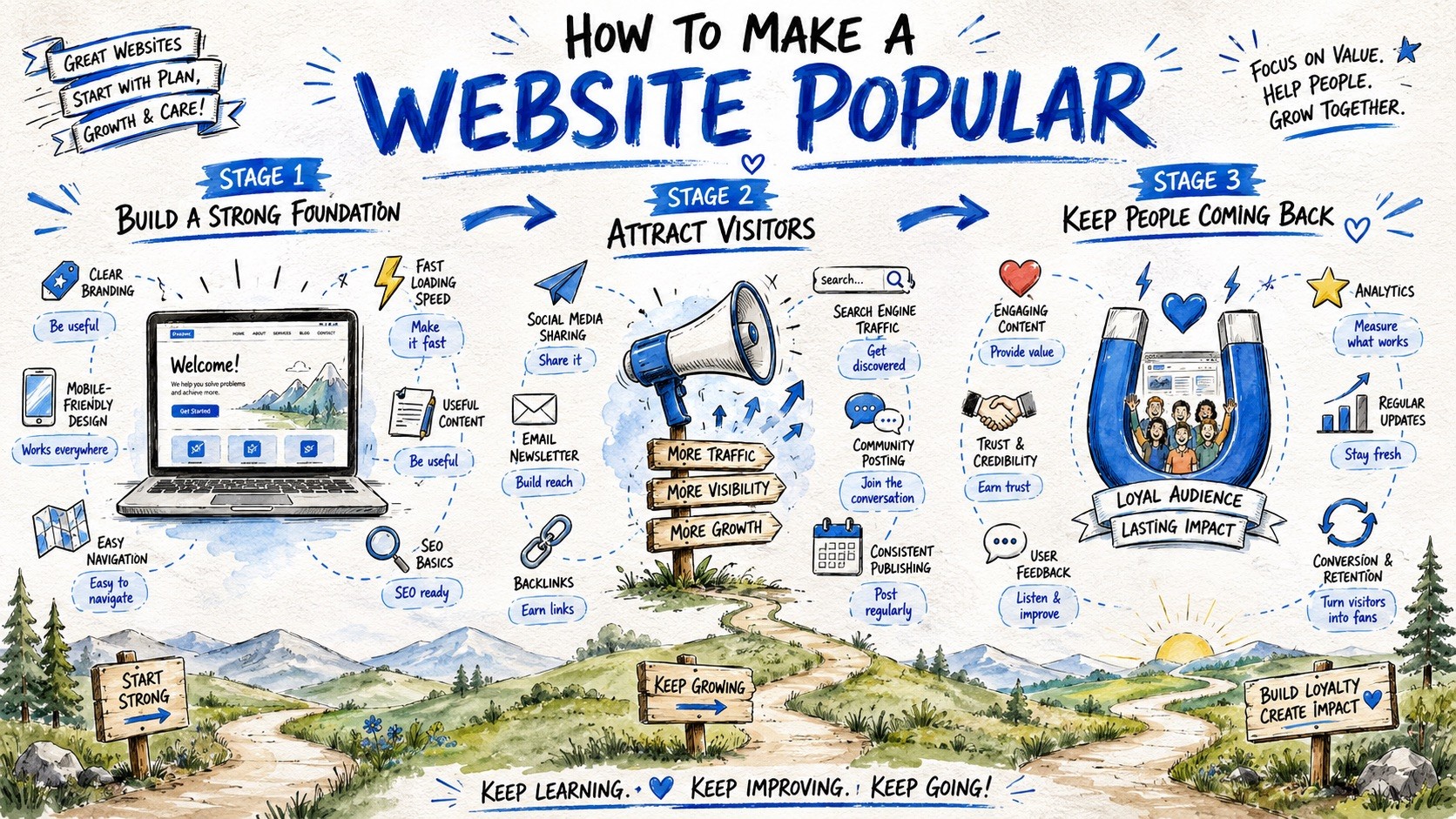
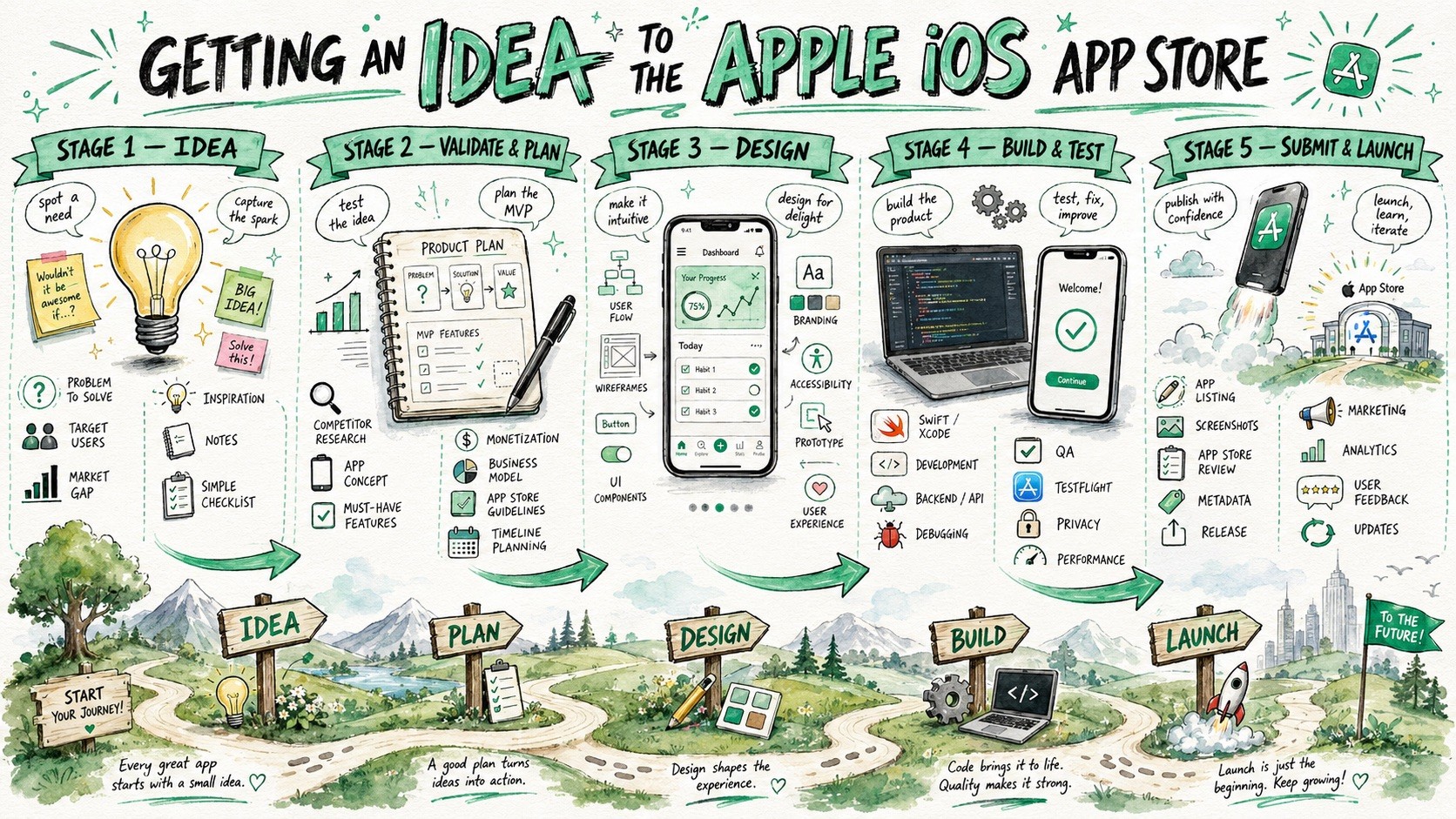
Create a large-format hand-drawn infographic illustration about {{Topic: e.g. How the Puco app organizes prompts for teams}}. The style must combine visual facilitation sketchnotes, watercolor concept art, and educational whiteboard storytelling. Structure the composition as a horizontal {{Layout Style: Journey Map, Evolution Timeline, Roadmap, Visual Presentation}} with {{Stages: 3 Stages, 4 Stages , 5 Stages , 6 Stages , 7 Stages , 8 Stages, 9 Stages}} sequential horizontal sections. Visual Language: Use loose but controlled sketch illustrations with organic hand-drawn imperfections and expressive black ink outlines. Color Palette: Apply a watercolor and marker hybrid rendering using {{Accent Colors: Cobalt Blue, Turquoise, Mint Green, Orange, Golden Yellow, Violet, Soft Pink, Sky Blue, Charcoal }} as primary accents on a textured white paper background. Composition: Feature a large, bold hand-painted title at the top center. Each stage should include a central hero object, supporting mini-icons, and hand-drawn curved arrows to guide the flow. The bottom third should contain a continuous grounding landscape, such as rolling hills or a curving path, to reinforce the narrative journey. Tone: {{Tone: Optimistic, Educational, Imaginative, Clean, Future-focused, Dystopian}}.
e.g. How the Puco app organizes prompts for teams
Journey Map, Evolution Timeline, Roadmap, Visual Presentation
3 Stages, 4 Stages, 5 Stages, 6 Stages, 7 Stages, 8 Stages, 9 Stages
Cobalt Blue, Turquoise, Mint Green, Orange, Golden Yellow, Violet, Soft Pink, Sky Blue
Optimistic, Educational, Imaginative, Clean, Future-focused, Dystopian
Create a large-format hand-drawn infographic illustration about e.g. How the Puco app organizes prompts for teams. The style must combine visual facilitation sketchnotes, watercolor concept art, and educational whiteboard storytelling. Structure the composition as a horizontal Journey Map with 3 Stages sequential horizontal sections. Visual Language: Use loose but controlled sketch illustrations with organic hand-drawn imperfections and expressive black ink outlines. Color Palette: Apply a watercolor and marker hybrid rendering using Cobalt Blue as primary accents on a textured white paper background. Composition: Feature a large, bold hand-painted title at the top center. Each stage should include a central hero object, supporting mini-icons, and hand-drawn curved arrows to guide the flow. The bottom third should contain a continuous grounding landscape, such as rolling hills or a...
Variablen sind in {{ und }} eingeschlossen und folgen diesem Muster:
Eine Auswahl kann auf eine vordefinierte Variablenliste per eckige Klammern verweisen. Diese erscheinen in [Orange] und bieten häufig verwendete Werte wie Farben, Töne oder Sprachen.
Du kannst auch eine durch Kommas getrennte Inline-Liste mit Optionen angeben.
Tipp: Du brauchst die PUCO-App nicht, um diese Prompts zu verwenden! Kopiere einfach die Vorlage und ersetze jeden {{…}}-Abschnitt direkt in ChatGPT, Claude, Gemini oder einem anderen KI-Assistenten durch eigenen Text.