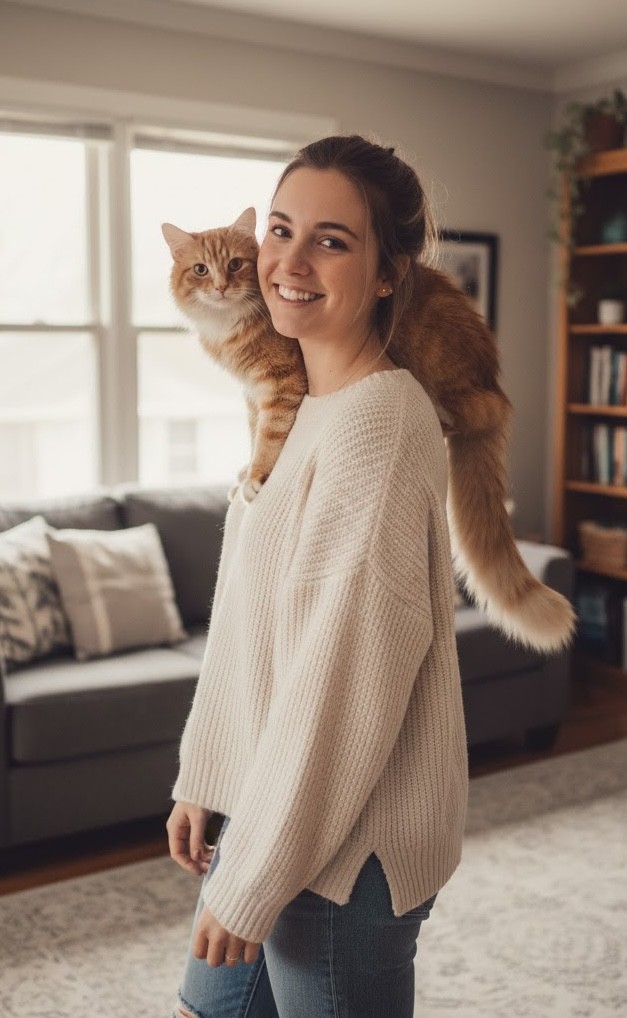
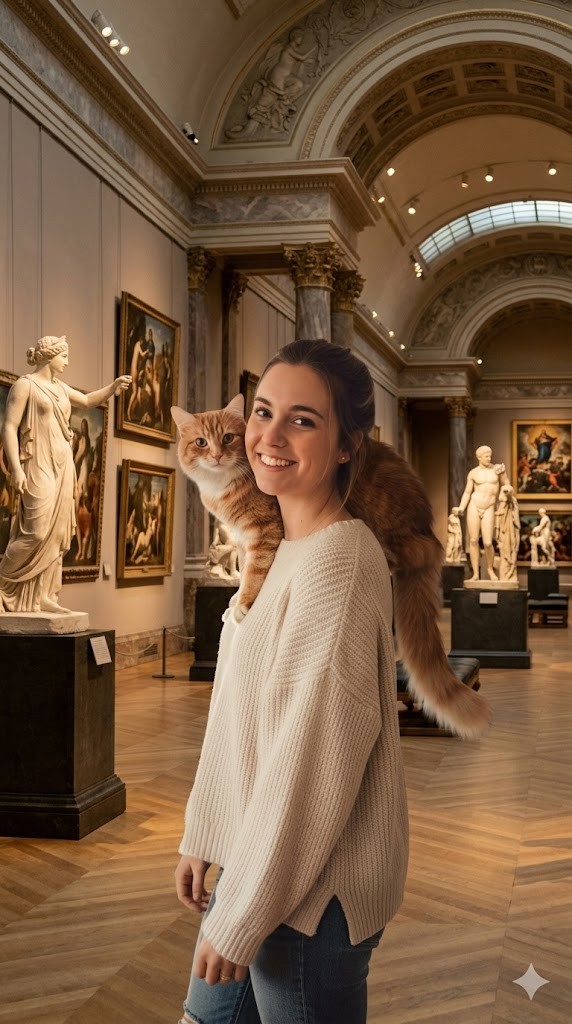
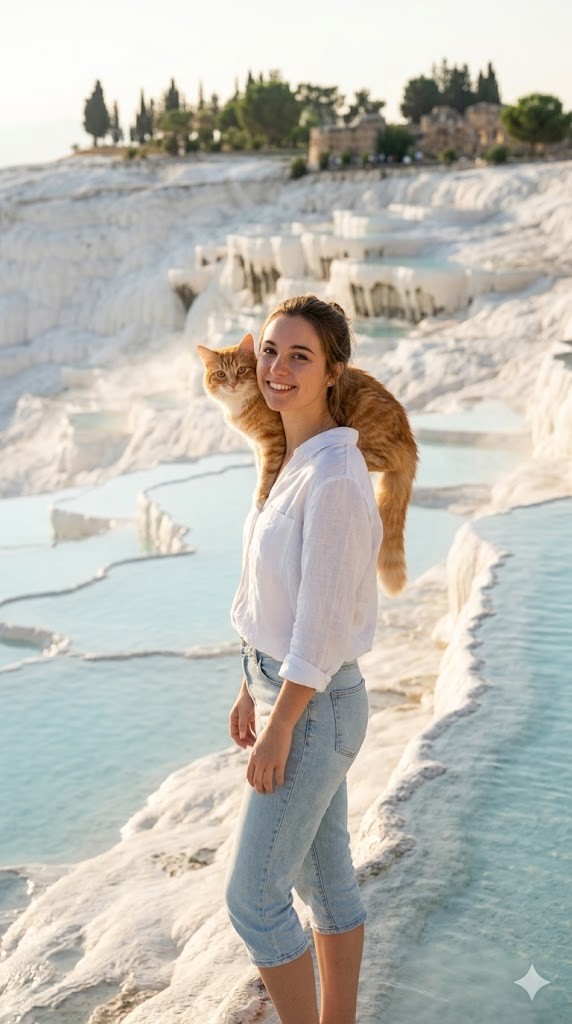
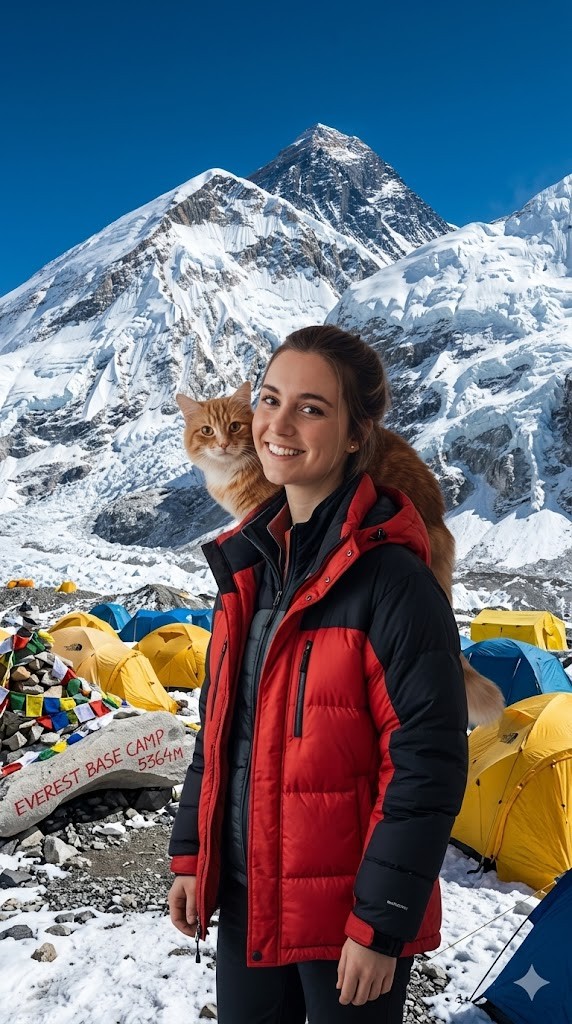
I have attached an image of myself. No public figures on the image. Please follow these steps:

Step 1: Analyze the visual environment of {{Destination:[tourist_destinations]}}, noting its iconic landmarks, typical lighting conditions, and architectural style.

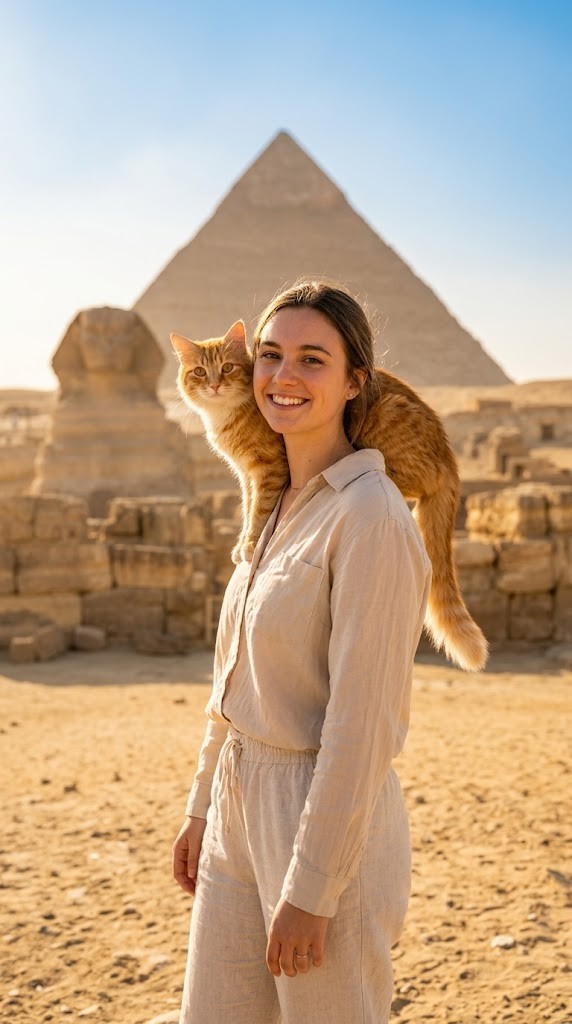
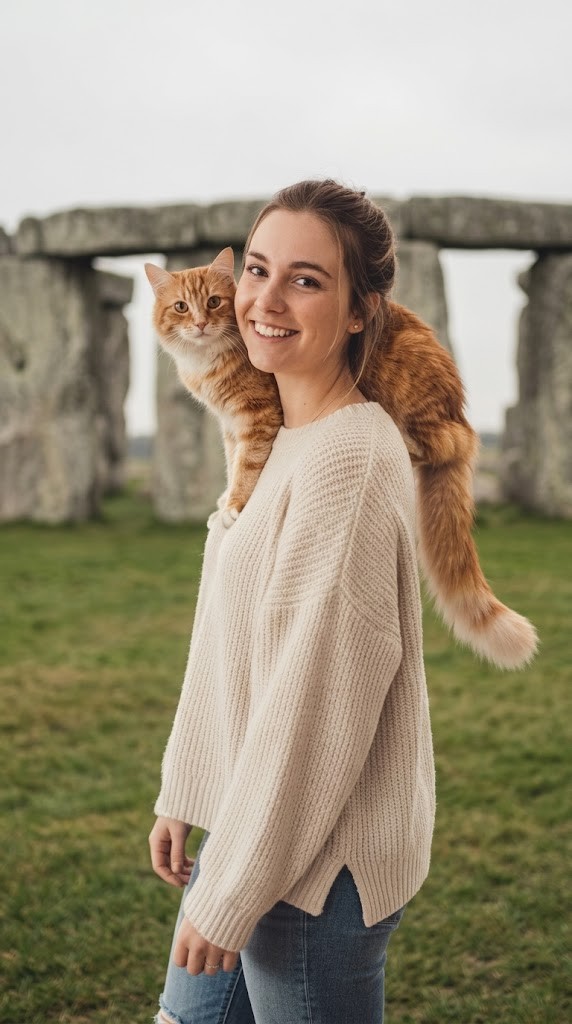
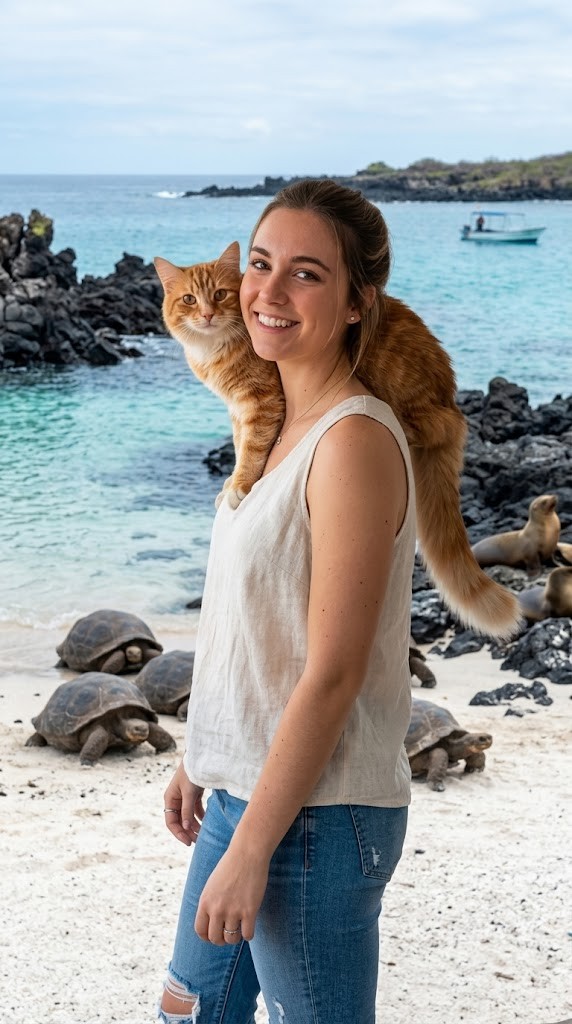
Step 2: Use the attached image and the description from Step 1 to modify the background and adjust the lighting so it matches the background. If the clothing of the subject is not appropriate for the environment (e.g. warm coat at the beach), adjust the clothes accordingly.
Generate  a new version of the image where the subject appears to be visiting {{Destination:[tourist_destinations]}} and chose the Aspect ratio: {{Aspect Ratios: [aspect_ratios]}} Make sure it blends well with the backgrond
Prompt-Anleitung
Ideal für
Einen strukturierten, wiederverwendbaren Prompt statt eines leeren Chats als Ausgangspunkt nutzen.
Den Prompt an eigene Eingaben anpassen, während die ursprüngliche Absicht erhalten bleibt.
Workflows rund um Design & Art, Global Travel, Photography.
So wird's verwendet
Die vollständige Prompt-Vorlage kopieren.
Jede Variable durch den eigenen Kontext ersetzen oder eine der vorgeschlagenen Optionen wählen.
Den fertiggestellten Prompt in ChatGPT, Claude, Gemini oder einen anderen KI-Assistenten einfügen.
Variablen in diesem Prompt
DestinationVordefinierte Liste
[tourist_destinations]
Aspect RatiosVordefinierte Liste
[aspect_ratios]
Beispiel-Einstieg
I have attached an image of myself. No public figures on the image. Please follow these steps:

Step 1: Analyze the visual environment of [tourist_destinations], noting its iconic landmarks, typical lighting conditions, and architectural style.

Step 2: Use the attached image and the description from Step 1 to modify the background and adjust the lighting so it matches the background. If the clothing of the subject is not appropriate for the environment (e.g. warm coat at the beach), adjust the clothes accordingly.
Generate  a new version of the image where the subject appears to be visiting [tourist_destinations] and chose the Aspect ratio: [aspect_ratios] Make sure it blends well with the backgrond
So funktionieren Variablen
Variablen-Syntax
Variablen sind in {{ und }} eingeschlossen und folgen diesem Muster:
{{variable name: option1, option2, option3}}
Vordefinierte Variablen
Eine Auswahl kann auf eine vordefinierte Variablenliste per eckige Klammern verweisen. Diese erscheinen in [Orange] und bieten häufig verwendete Werte wie Farben, Töne oder Sprachen.
{{Tone: [tones]}}
Eigene Auswahllisten
Du kannst auch eine durch Kommas getrennte Inline-Liste mit Optionen angeben.
Tipp: Du brauchst die PUCO-App nicht, um diese Prompts zu verwenden! Kopiere einfach die Vorlage und ersetze jeden {{…}}-Abschnitt direkt in ChatGPT, Claude, Gemini oder einem anderen KI-Assistenten durch eigenen Text.
Diesen Prompt in Sekunden nutzen – nicht Minuten
PUCO für Mac installieren: Tastenkürzel drücken, Smart Form ausfüllen, in ChatGPT, Claude oder Gemini einfügen. Jede Variable wird zu einem kuratierten Dropdown. Deine letzten Werte werden gespeichert.
Generates a highly customizable, professional studio headshot based on an input image, with extensive options for clothing, background, and atmosphere.