Ideale per
- Partire da un prompt strutturato e riutilizzabile invece di una chat vuota.
- Adattare il prompt ai propri input mantenendo intatto l'intento originale.
- Flussi di lavoro legati a Design & Art.

Genera un’infografica tecnica 3D isometrica a 45 gradi, altamente dettagliata, di un oggetto specificato, con annotazioni e schemi precisi.
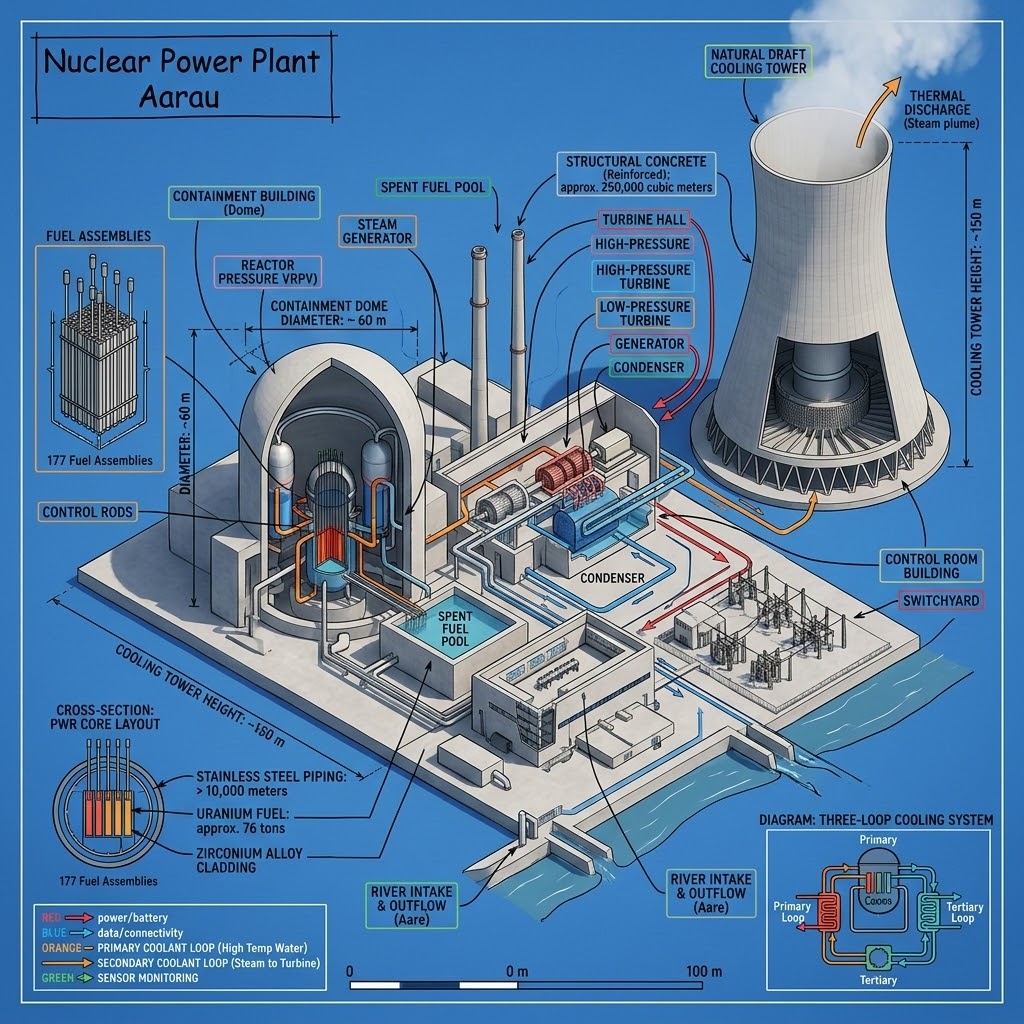
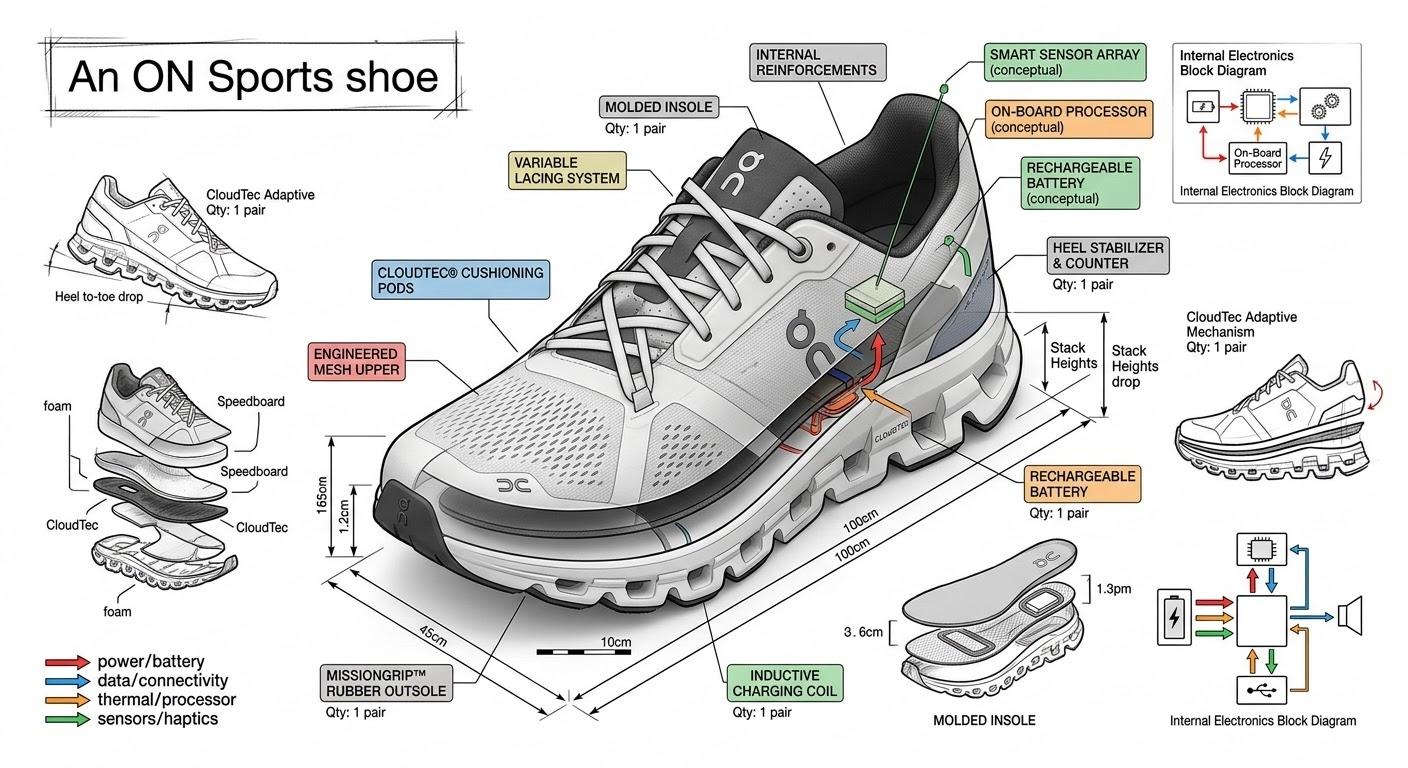
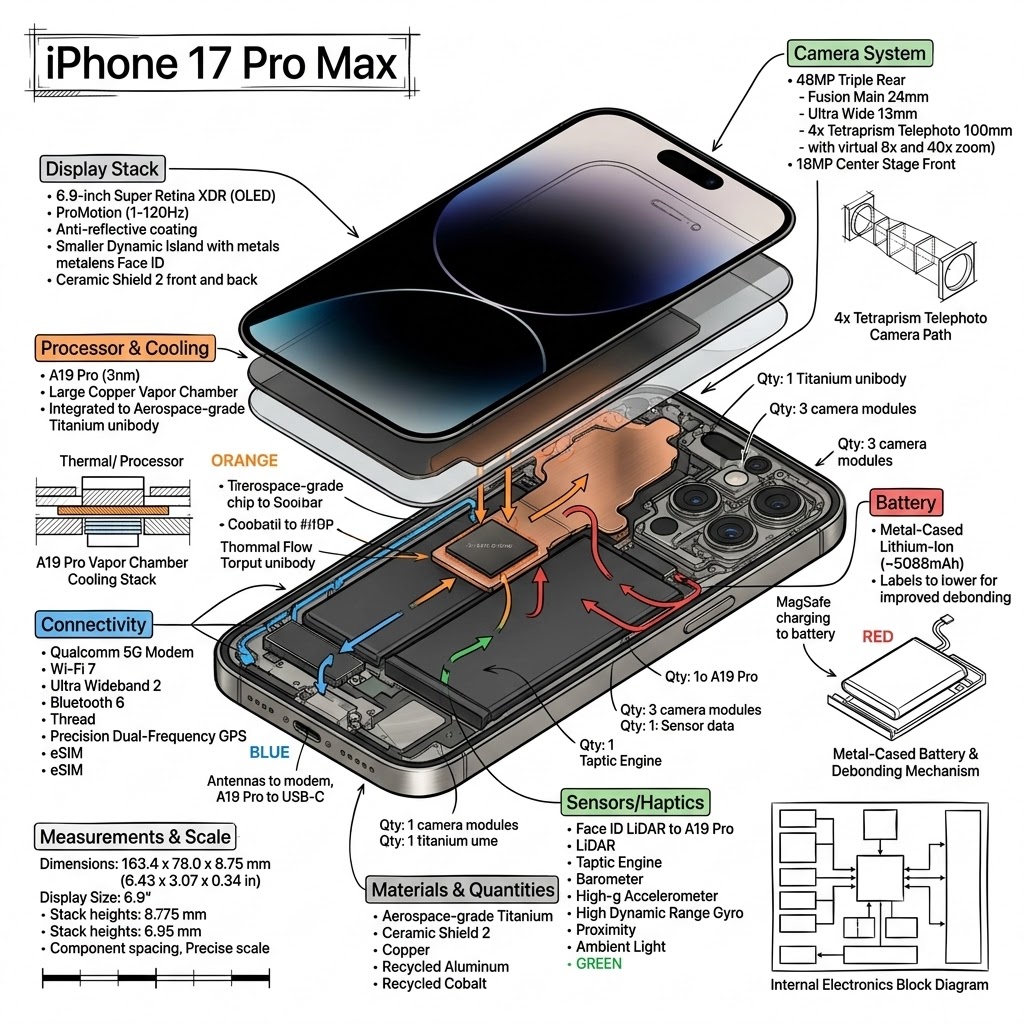
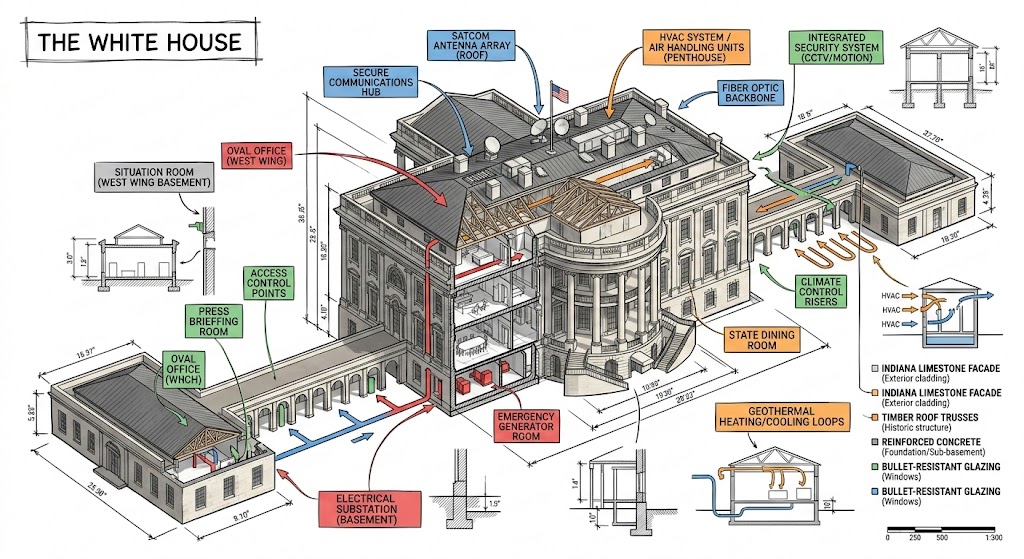
Create a technical infographic of {{Object: e.g. A smartphone running the PUCO prompt management app}} with a 45-degree isometric 3D perspective showing the device slightly tilted to reveal depth and dimension. Combine a realistic photoreal render with black ink technical annotations on a {{Background Color: pure white, blueprint blue, stark black}} background. Include:

1. Key component labels with color-coded callout boxes. Do not repeat a label more than once.
2. Internal component visibility through transparent/cutaway sections.
3. Measurements, dimensions, and precise scale markers.
4. Material callouts and quantities.
5. Color-coded arrows for function/flow: RED (power/battery), BLUE (data/connectivity), ORANGE (thermal/processor), GREEN (sensors/haptics).
6. Simple schematics or cross-sectional diagrams where relevant.

Place the {{Object: e.g. A smartphone running the PUCO prompt management app}} title in a hand-drawn technical box (top-left corner). Style: Black linework (technical pen/architectural), sketched but precise. Object remains clearly visible. Educational museum-exhibit vibe. Clean composition, balanced negative space.

Perspective: Isometric 3D angle-tilted to show depth, dimension, and internal architecture dramatically. Like a professional product teardown or engineering manual. Colors: {{Accent Color Density: Minimal (mostly monochrome with slight accents), Balanced (clear color-coded pops), Vibrant (heavy use of accent colors)}}. Output: {{Resolution: 1080x1080, 1920x1080, 1080x1920}}, ultra-crisp, social-feed optimized.
e.g. A smartphone running the PUCO prompt management app
pure white, blueprint blue, stark black
Minimal (mostly monochrome with slight accents), Balanced (clear color-coded pops), Vibrant (heavy use of accent colors)
1080x1080, 1920x1080, 1080x1920
Create a technical infographic of e.g. A smartphone running the PUCO prompt management app with a 45-degree isometric 3D perspective showing the device slightly tilted to reveal depth and dimension. Combine a realistic photoreal render with black ink technical annotations on a pure white background. Include:

1. Key component labels with color-coded callout boxes. Do not repeat a label more than once.
2. Internal component visibility through transparent/cutaway sections.
3. Measurements, dimensions, and precise scale markers.
4. Material callouts and quantities.
5. Color-coded arrows for function/flow: RED (power/battery), BLUE (data/connectivity), ORANGE (thermal/processor), GREEN (sensors/haptics).
6. Simple schematics or cross-sectional diagrams where relevant.

Place the e.g. A smartphone running the PUCO prompt management app title in a hand-drawn technical box (top-left corner)...
Le variabili sono racchiuse tra {{ e }} e seguono questo schema:
Una selezione può fare riferimento a un elenco di variabili predefinito usando le parentesi quadre. Appaiono in [arancione] e forniscono valori di uso comune come colori, toni o lingue.
Puoi anche fornire un elenco di scelte in linea, separate da virgole.
Suggerimento: non hai bisogno dell'app PUCO per usare questi prompt! Copia semplicemente il modello e sostituisci ogni sezione {{…}} con il tuo testo direttamente in ChatGPT, Claude, Gemini o qualsiasi altro assistente IA.