Ideal für
- Einen strukturierten, wiederverwendbaren Prompt statt eines leeren Chats als Ausgangspunkt nutzen.
- Den Prompt an eigene Eingaben anpassen, während die ursprüngliche Absicht erhalten bleibt.
- Workflows rund um Design & Art.

Kombiniert realistische Fotografie mit handgezeichneten technischen Anmerkungen und schematischen Overlays auf einem sauberen weißen Hintergrund.
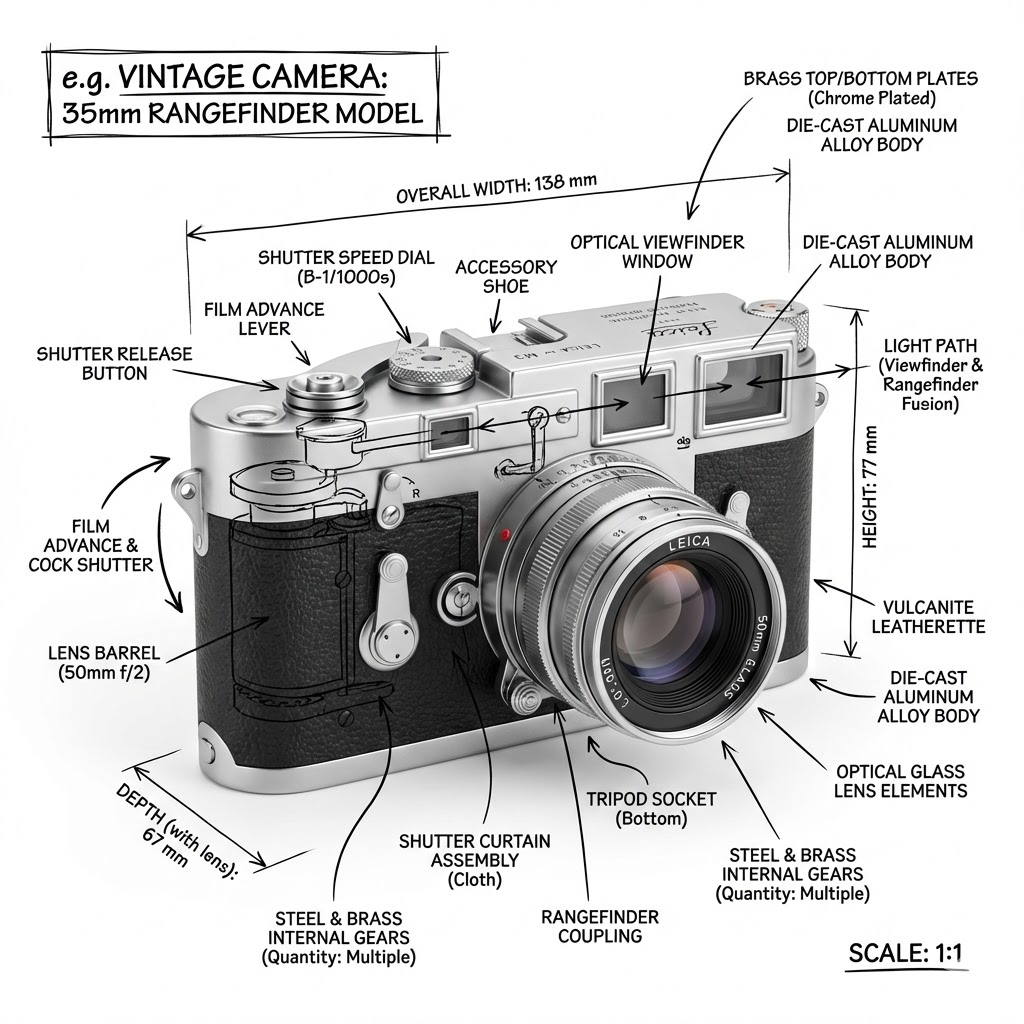
Create an infographic image of {{Object:e.g. Vintage Camera, A sportshoe from ON, The Eiffel Tower, The Colloseum, A Nuclear Powerplant, The Niagara Falls}}, combining a realistic photograph or photoreal render of the object with technical annotation overlays placed directly on top. Use black ink–style line drawings and text (technical pen / architectural sketch look) on a pure white studio background, including: Key component labels, internal cutaway or exploded-view outlines, measurements, dimensions, and scale markers, material callouts and quantities, and arrows indicating {{Indicated Function:function, force, or flow}}. Place the title {{Object:e.g. Vintage Camera}} inside a hand-drawn technical annotation box in one corner. Style rules: The real object remains clearly visible beneath the annotations; annotations feel sketched and architectural; clean composition with balanced negative space; educational engineering-manual vibe. Color palette: White background, black annotation lines and text only. Aspect ratio: {{Aspect Ratio:1:1, 16:9, 4:5}}.
e.g. Vintage Camera, A sportshoe from ON, The Eiffel Tower, The Colloseum, A Nuclear Powerplant, The Niagara Falls
function, force, or flow
1:1, 16:9, 4:5
Create an infographic image of e.g. Vintage Camera, combining a realistic photograph or photoreal render of the object with technical annotation overlays placed directly on top. Use black ink–style line drawings and text (technical pen / architectural sketch look) on a pure white studio background, including: Key component labels, internal cutaway or exploded-view outlines, measurements, dimensions, and scale markers, material callouts and quantities, and arrows indicating function. Place the title e.g. Vintage Camera inside a hand-drawn technical annotation box in one corner. Style rules: The real object remains clearly visible beneath the annotations; annotations feel sketched and architectural; clean composition with balanced negative space; educational engineering-manual vibe. Color palette: White background, black annotation lines and text only. Aspect ratio: 1:1.
Variablen sind in {{ und }} eingeschlossen und folgen diesem Muster:
Eine Auswahl kann auf eine vordefinierte Variablenliste per eckige Klammern verweisen. Diese erscheinen in [Orange] und bieten häufig verwendete Werte wie Farben, Töne oder Sprachen.
Du kannst auch eine durch Kommas getrennte Inline-Liste mit Optionen angeben.
Tipp: Du brauchst die PUCO-App nicht, um diese Prompts zu verwenden! Kopiere einfach die Vorlage und ersetze jeden {{…}}-Abschnitt direkt in ChatGPT, Claude, Gemini oder einem anderen KI-Assistenten durch eigenen Text.