Best For
- Starting from a structured, reusable prompt instead of a blank chat.
- Adapting the prompt to your own inputs while keeping the original intent intact.
- Workflows related to Design & Art.

Combines realistic photography with hand-drawn technical annotations and schematic overlays on a clean white background.
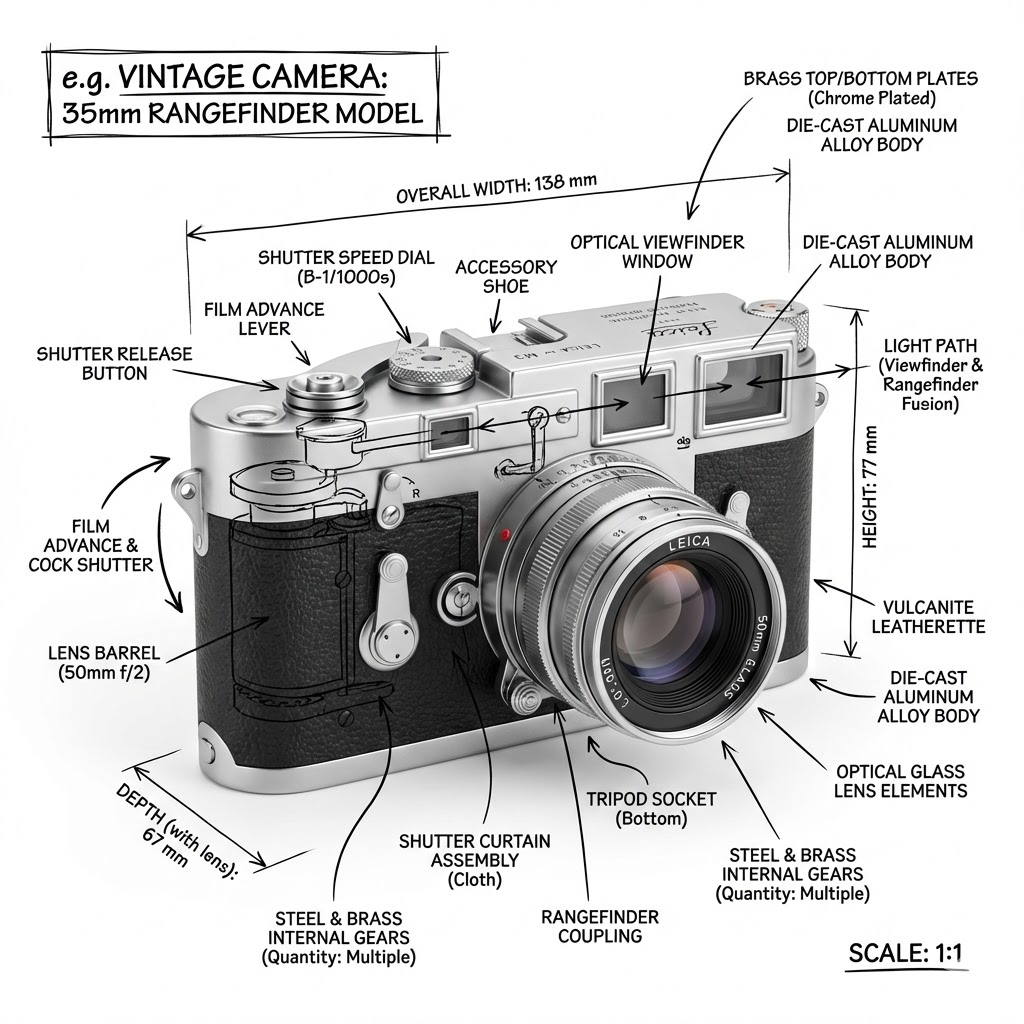
Create an infographic image of {{Object:e.g. Vintage Camera, A sportshoe from ON, The Eiffel Tower, The Colloseum, A Nuclear Powerplant, The Niagara Falls}}, combining a realistic photograph or photoreal render of the object with technical annotation overlays placed directly on top. Use black ink–style line drawings and text (technical pen / architectural sketch look) on a pure white studio background, including: Key component labels, internal cutaway or exploded-view outlines, measurements, dimensions, and scale markers, material callouts and quantities, and arrows indicating {{Indicated Function:function, force, or flow}}. Place the title {{Object:e.g. Vintage Camera}} inside a hand-drawn technical annotation box in one corner. Style rules: The real object remains clearly visible beneath the annotations; annotations feel sketched and architectural; clean composition with balanced negative space; educational engineering-manual vibe. Color palette: White background, black annotation lines and text only. Aspect ratio: {{Aspect Ratio:1:1, 16:9, 4:5}}.
e.g. Vintage Camera, A sportshoe from ON, The Eiffel Tower, The Colloseum, A Nuclear Powerplant, The Niagara Falls
function, force, or flow
1:1, 16:9, 4:5
Create an infographic image of e.g. Vintage Camera, combining a realistic photograph or photoreal render of the object with technical annotation overlays placed directly on top. Use black ink–style line drawings and text (technical pen / architectural sketch look) on a pure white studio background, including: Key component labels, internal cutaway or exploded-view outlines, measurements, dimensions, and scale markers, material callouts and quantities, and arrows indicating function. Place the title e.g. Vintage Camera inside a hand-drawn technical annotation box in one corner. Style rules: The real object remains clearly visible beneath the annotations; annotations feel sketched and architectural; clean composition with balanced negative space; educational engineering-manual vibe. Color palette: White background, black annotation lines and text only. Aspect ratio: 1:1.
Variables are wrapped in {{ and }} and follow this pattern:
A selection can reference a predefined variable list using square brackets. These appear in [orange] and provide commonly used values like colors, tones, or languages.
You can also provide an inline list of choices separated by commas.
Tip: You don't need the PUCO app to use these prompts! Simply copy the template and replace each {{…}} section with your own text directly in ChatGPT, Claude, Gemini, or any other AI assistant.