Best For
- Starting from a structured, reusable prompt instead of a blank chat.
- Adapting the prompt to your own inputs while keeping the original intent intact.
- Workflows related to Gaming, Design & Art.

Generates a nostalgic, low-resolution pixel art icon suited for retro gaming apps or stylized tools.
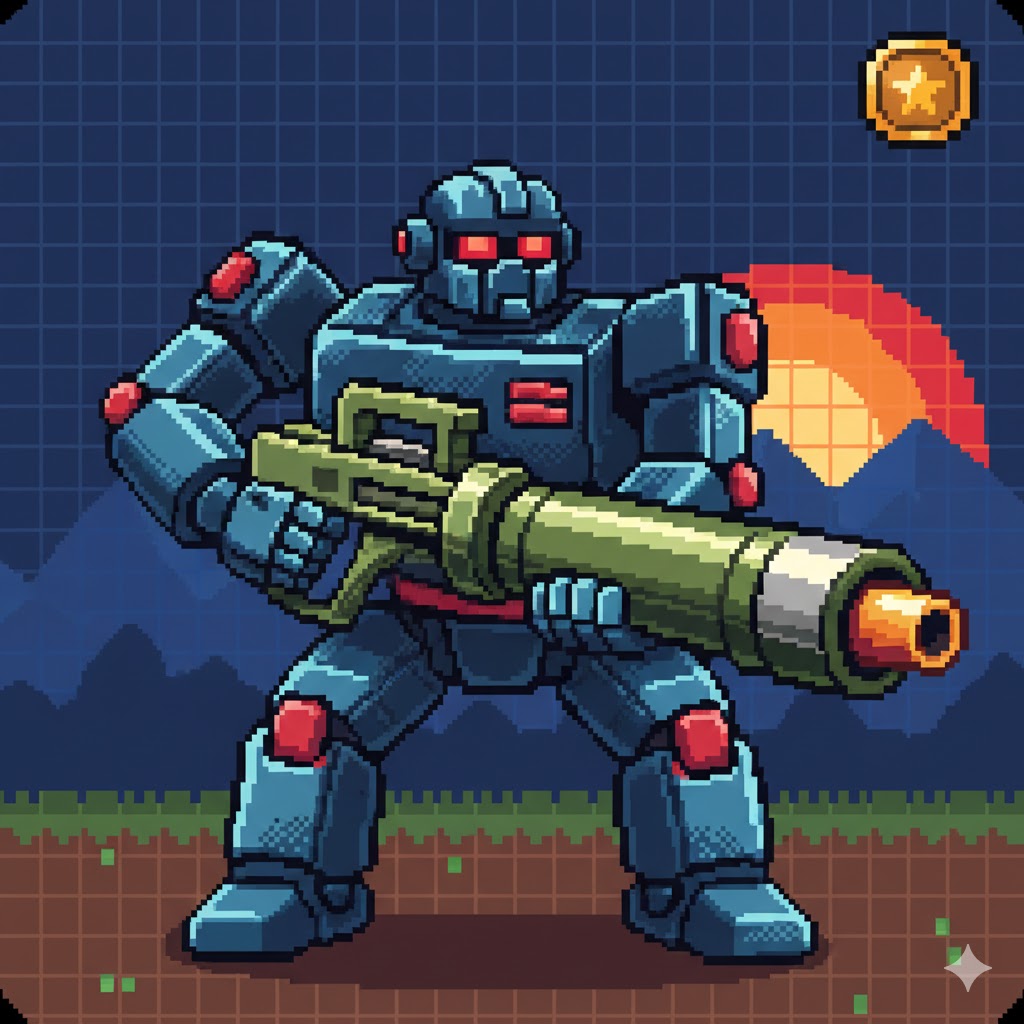
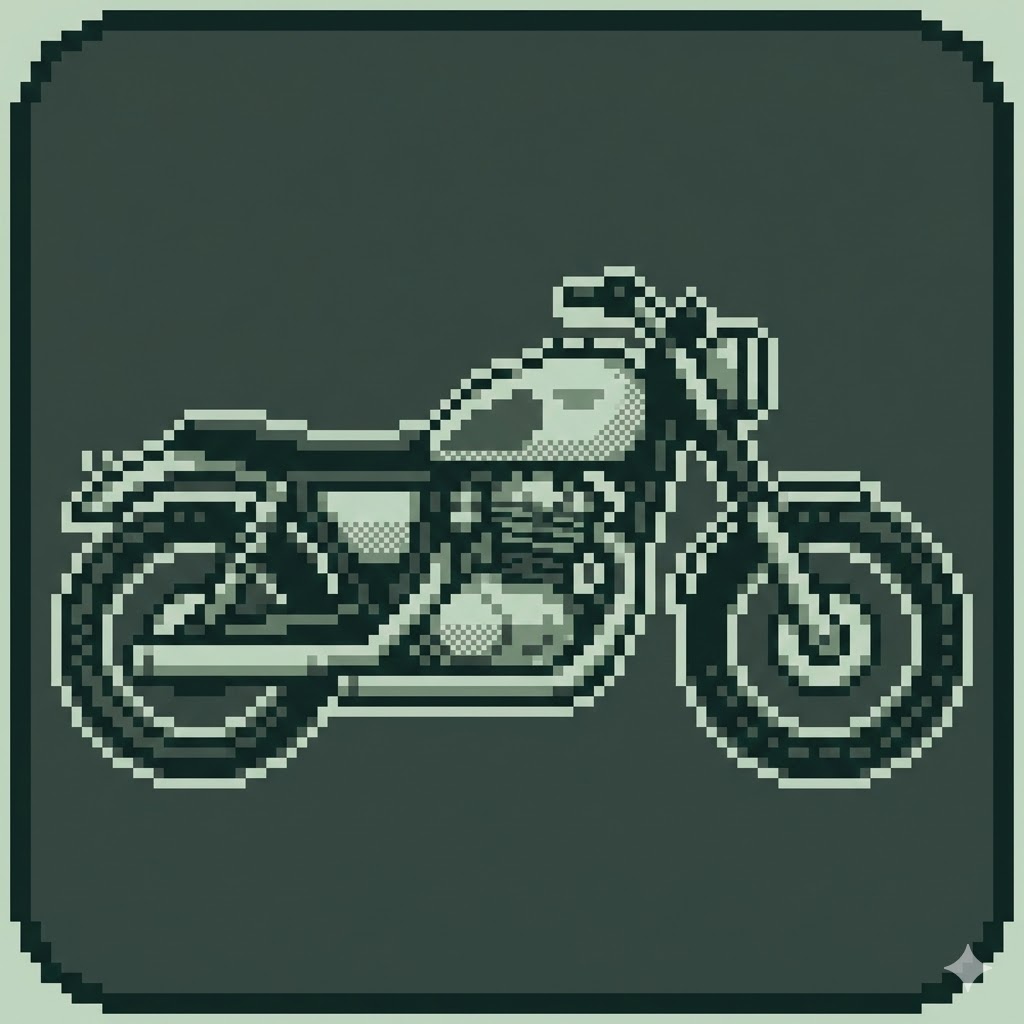
Act as an expert AI image generator. Create a pixel art app icon.

Object to depict: {{object: e.g. A robot with a bazooka}}
Bit Style: {{bit_depth: 8-bit NES style, 16-bit SNES style, Gameboy mono}}

Stylistic constraints: visible pixels, grid-aligned, limited retro color palette, dithering for shading, clean pixel edges, suitable for a square icon format. The image size is 1024x1024. The icon is drawn to the edges without rounded corners
e.g. A robot with a bazooka
8-bit NES style, 16-bit SNES style, Gameboy mono
Act as an expert AI image generator. Create a pixel art app icon.

Object to depict: e.g. A robot with a bazooka
Bit Style: 8-bit NES style

Stylistic constraints: visible pixels, grid-aligned, limited retro color palette, dithering for shading, clean pixel edges, suitable for a square icon format. The image size is 1024x1024. The icon is drawn to the edges without rounded corners
Variables are wrapped in {{ and }} and follow this pattern:
A selection can reference a predefined variable list using square brackets. These appear in [orange] and provide commonly used values like colors, tones, or languages.
You can also provide an inline list of choices separated by commas.
Tip: You don't need the PUCO app to use these prompts! Simply copy the template and replace each {{…}} section with your own text directly in ChatGPT, Claude, Gemini, or any other AI assistant.