Idéal pour
- Partir d'un prompt structuré et réutilisable plutôt que d'une conversation vierge.
- Adapter le prompt à vos propres données tout en conservant l'intention d'origine.
- Les workflows liés à Design & Art.

Génère une infographie technique 3D isométrique à 45 degrés, très détaillée, d’un objet spécifié, avec des annotations et des schémas précis.
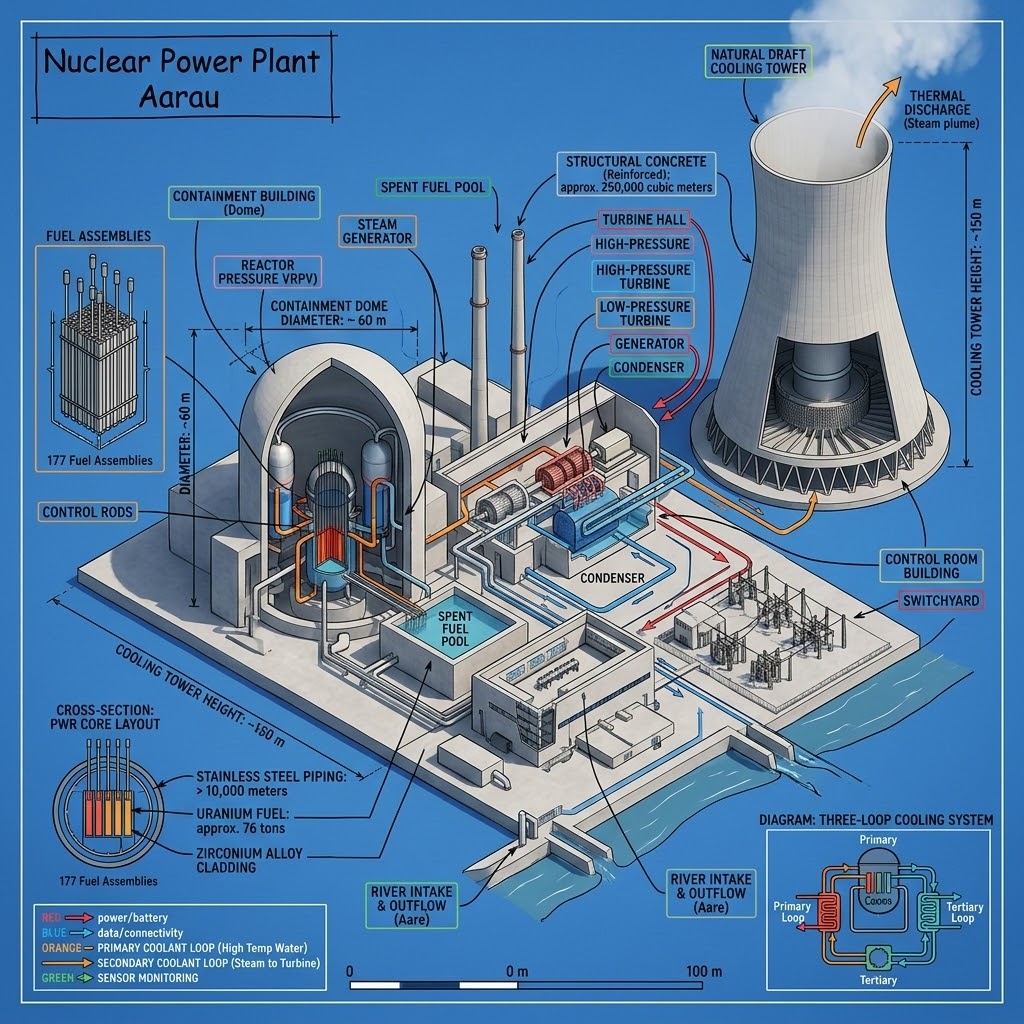
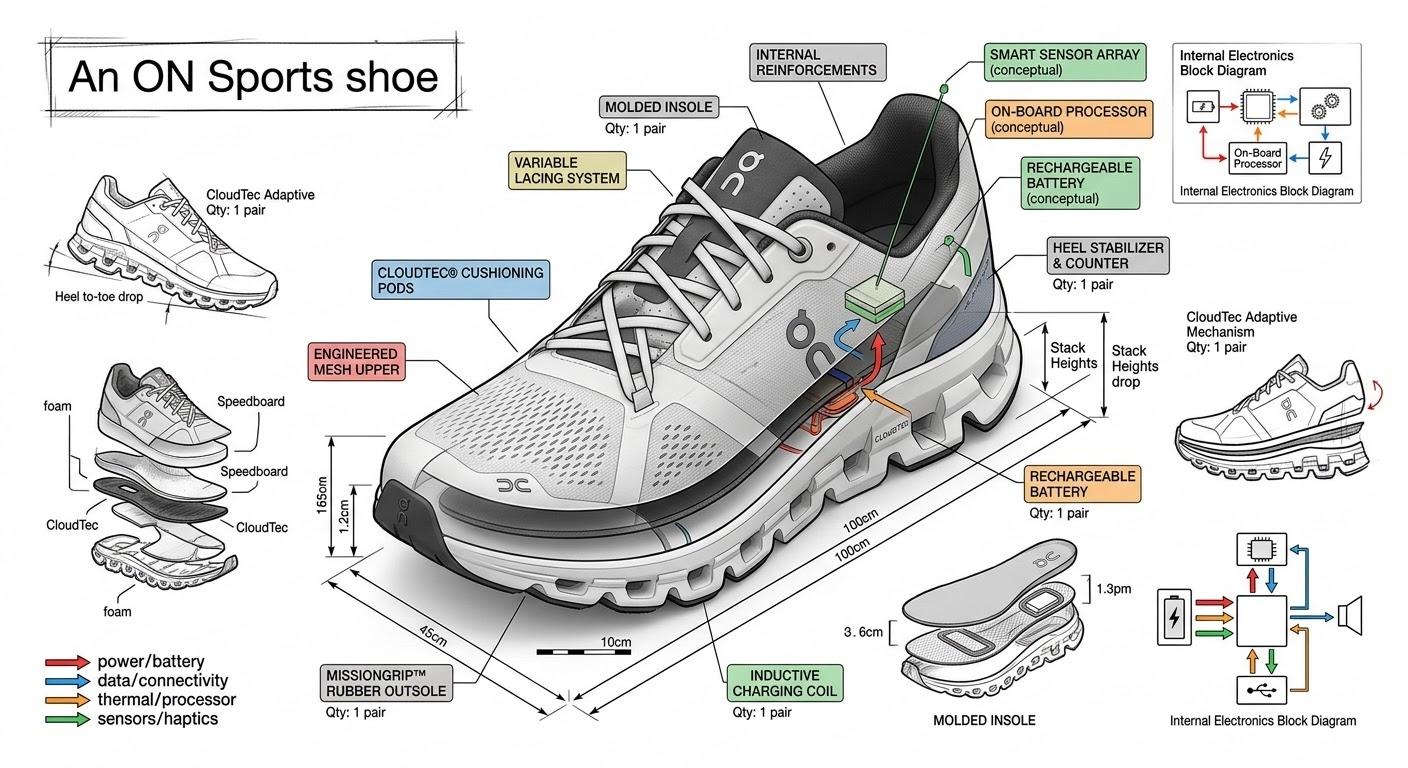
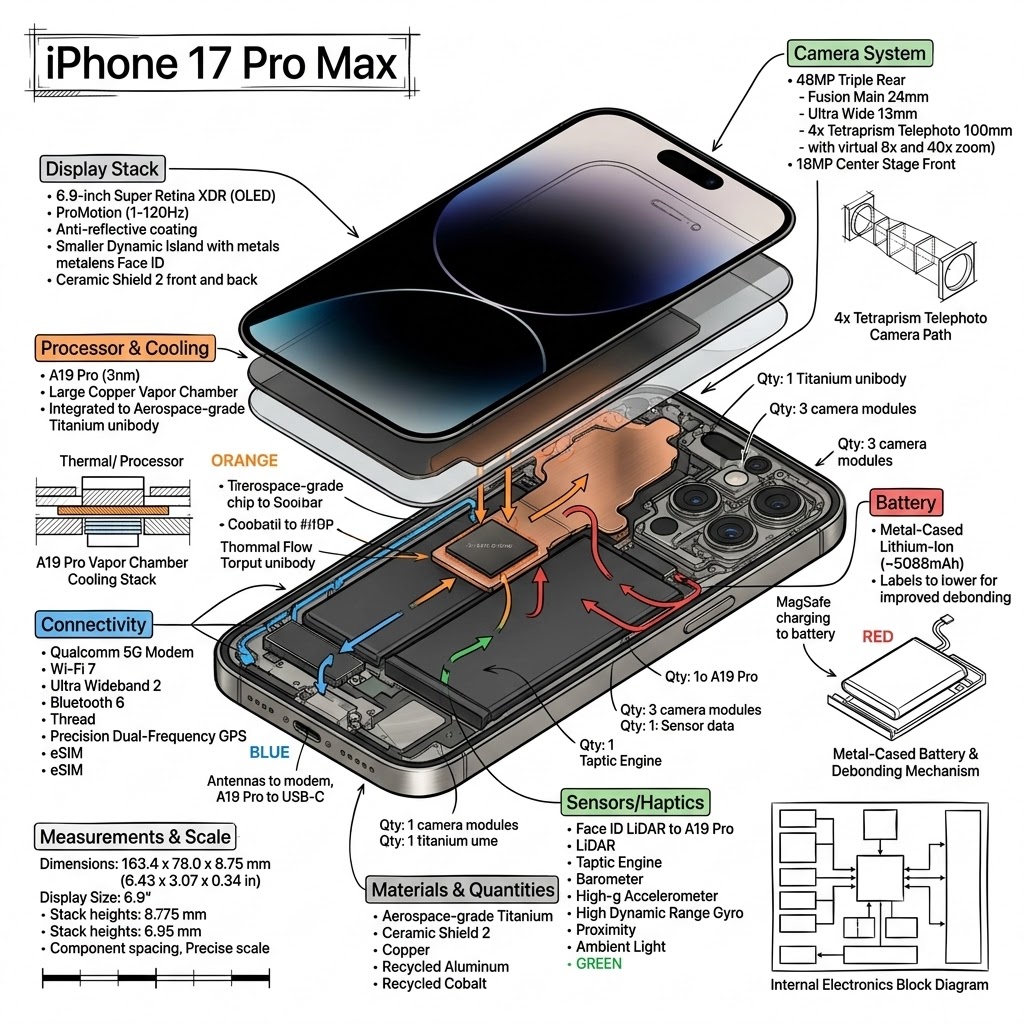
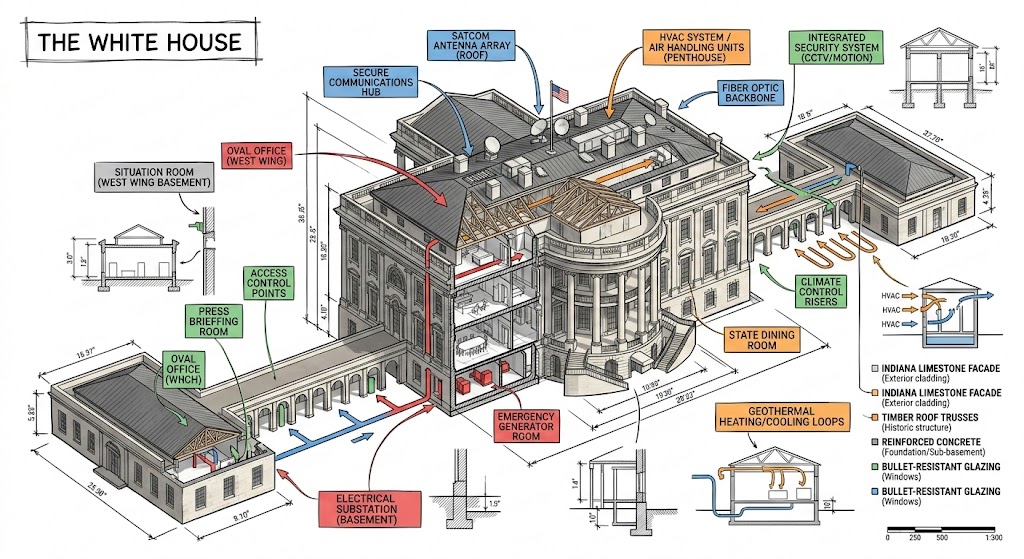
Create a technical infographic of {{Object: e.g. A smartphone running the PUCO prompt management app}} with a 45-degree isometric 3D perspective showing the device slightly tilted to reveal depth and dimension. Combine a realistic photoreal render with black ink technical annotations on a {{Background Color: pure white, blueprint blue, stark black}} background. Include:

1. Key component labels with color-coded callout boxes. Do not repeat a label more than once.
2. Internal component visibility through transparent/cutaway sections.
3. Measurements, dimensions, and precise scale markers.
4. Material callouts and quantities.
5. Color-coded arrows for function/flow: RED (power/battery), BLUE (data/connectivity), ORANGE (thermal/processor), GREEN (sensors/haptics).
6. Simple schematics or cross-sectional diagrams where relevant.

Place the {{Object: e.g. A smartphone running the PUCO prompt management app}} title in a hand-drawn technical box (top-left corner). Style: Black linework (technical pen/architectural), sketched but precise. Object remains clearly visible. Educational museum-exhibit vibe. Clean composition, balanced negative space.

Perspective: Isometric 3D angle-tilted to show depth, dimension, and internal architecture dramatically. Like a professional product teardown or engineering manual. Colors: {{Accent Color Density: Minimal (mostly monochrome with slight accents), Balanced (clear color-coded pops), Vibrant (heavy use of accent colors)}}. Output: {{Resolution: 1080x1080, 1920x1080, 1080x1920}}, ultra-crisp, social-feed optimized.
e.g. A smartphone running the PUCO prompt management app
pure white, blueprint blue, stark black
Minimal (mostly monochrome with slight accents), Balanced (clear color-coded pops), Vibrant (heavy use of accent colors)
1080x1080, 1920x1080, 1080x1920
Create a technical infographic of e.g. A smartphone running the PUCO prompt management app with a 45-degree isometric 3D perspective showing the device slightly tilted to reveal depth and dimension. Combine a realistic photoreal render with black ink technical annotations on a pure white background. Include:

1. Key component labels with color-coded callout boxes. Do not repeat a label more than once.
2. Internal component visibility through transparent/cutaway sections.
3. Measurements, dimensions, and precise scale markers.
4. Material callouts and quantities.
5. Color-coded arrows for function/flow: RED (power/battery), BLUE (data/connectivity), ORANGE (thermal/processor), GREEN (sensors/haptics).
6. Simple schematics or cross-sectional diagrams where relevant.

Place the e.g. A smartphone running the PUCO prompt management app title in a hand-drawn technical box (top-left corner)...
Les variables sont entourées de {{ et }} et suivent ce modèle :
Une sélection peut référencer une liste de variables prédéfinie à l'aide de crochets. Elles apparaissent en [orange] et fournissent des valeurs courantes comme des couleurs, des tons ou des langues.
Vous pouvez aussi fournir une liste de choix en ligne, séparés par des virgules.
Astuce : vous n'avez pas besoin de l'application PUCO pour utiliser ces prompts ! Copiez simplement le modèle et remplacez chaque section {{…}} par votre propre texte directement dans ChatGPT, Claude, Gemini ou tout autre assistant IA.