เหมาะสำหรับ
- เริ่มจากพรอมต์ที่มีโครงสร้างและใช้ซ้ำได้ แทนที่จะเป็นแชทเปล่า
- ปรับพรอมต์ให้เข้ากับข้อมูลของคุณ โดยยังคงเจตนาเดิมไว้
- เวิร์กโฟลว์ที่เกี่ยวข้องกับ Creative & Visuals

สร้างฉากจิ๋ว 3D แบบไอโซเมตริกของเมือง ที่ผสานสภาพอากาศเฉพาะและข้อมูลเมตาเชิงตัวอักษรเข้าไว้ด้วยกันอย่างเห็นได้ชัด
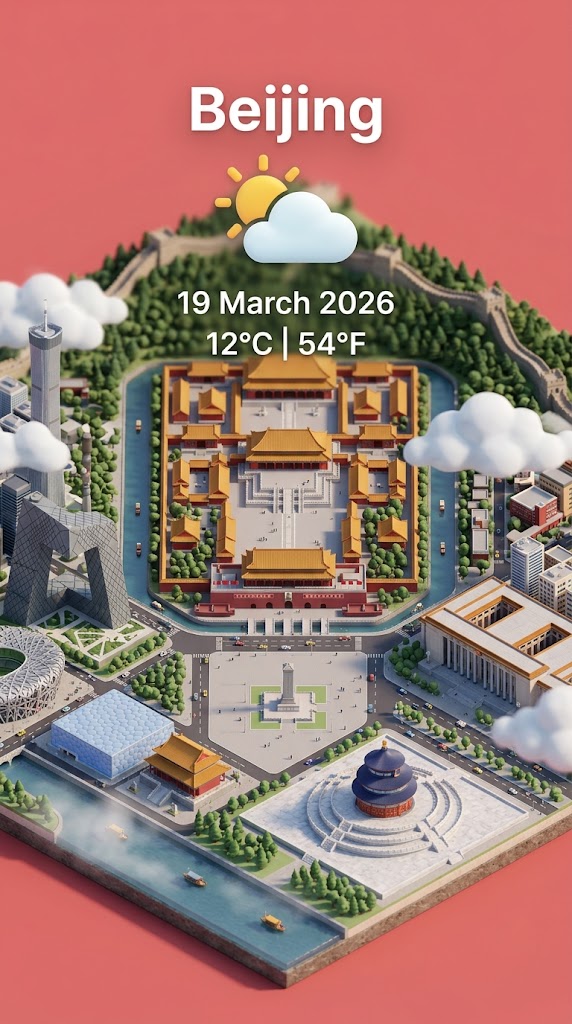
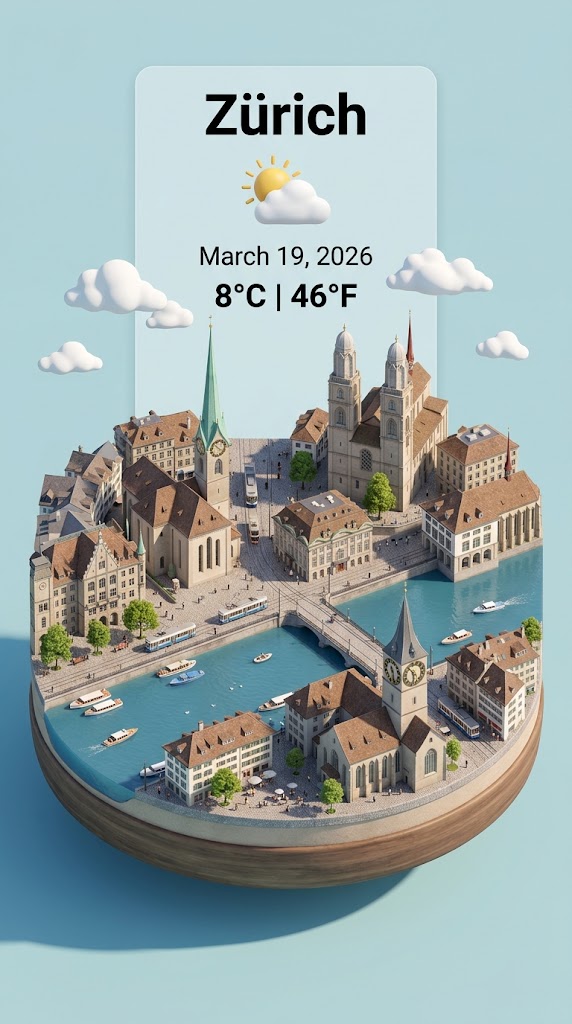
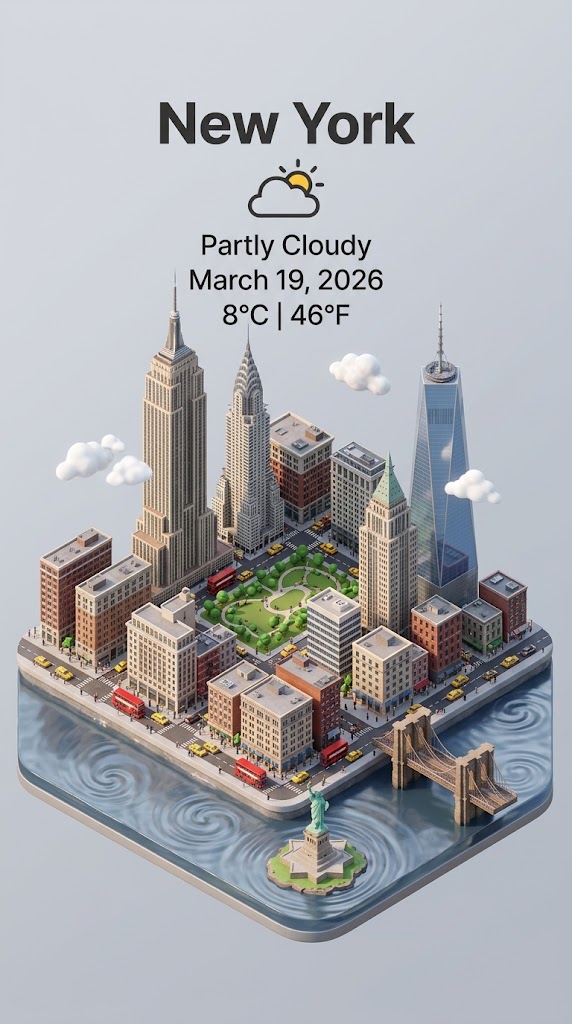
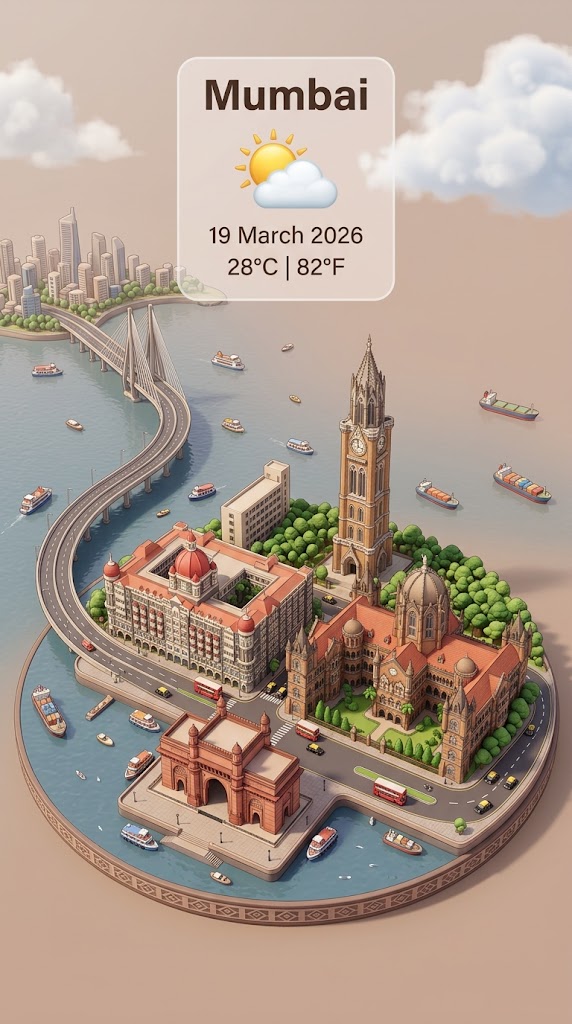
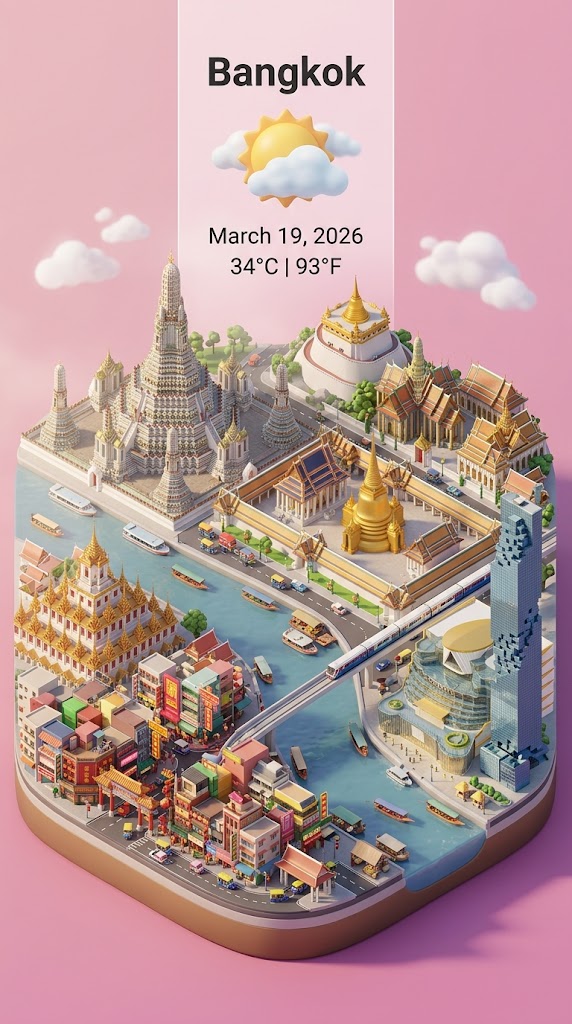
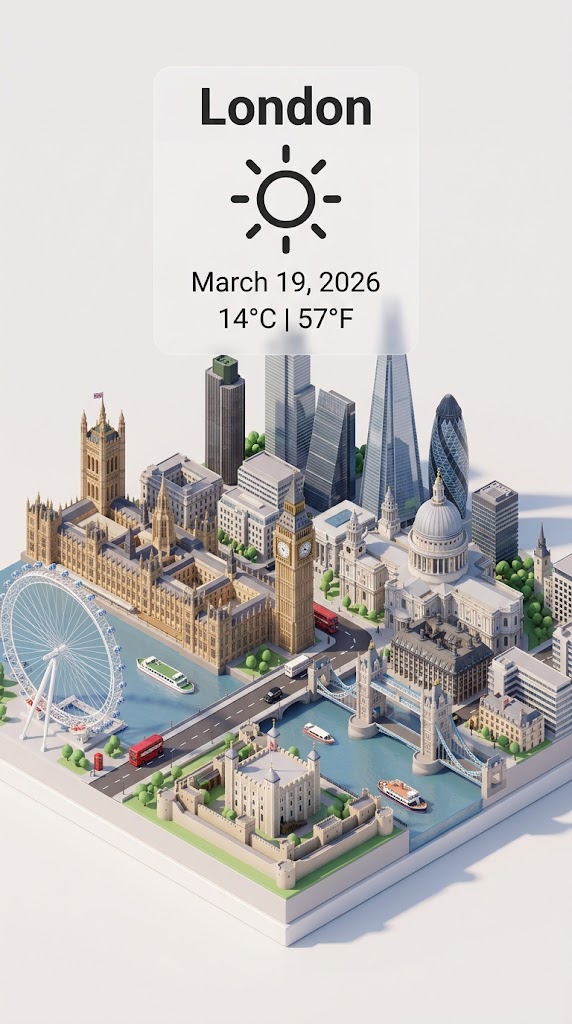
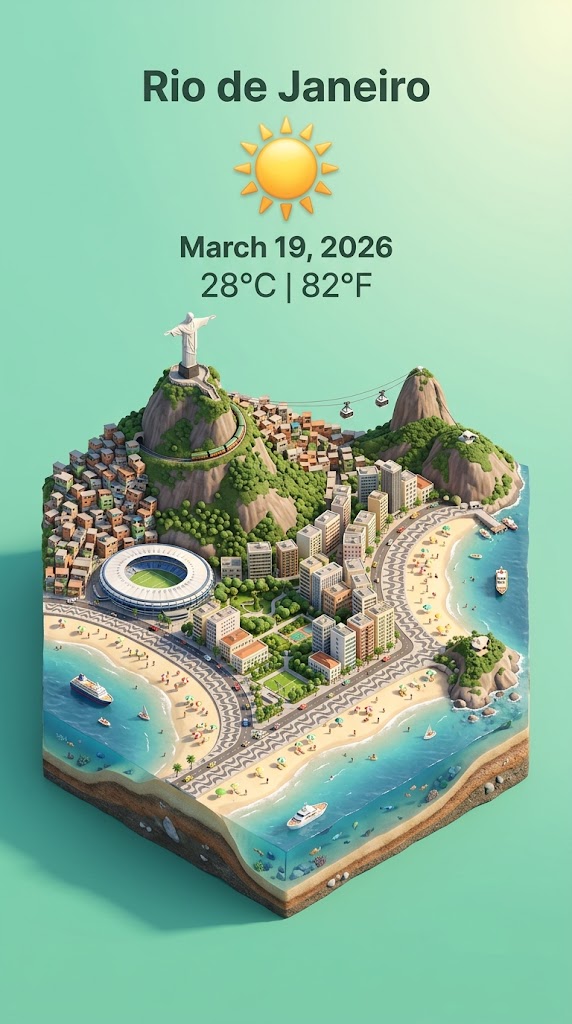
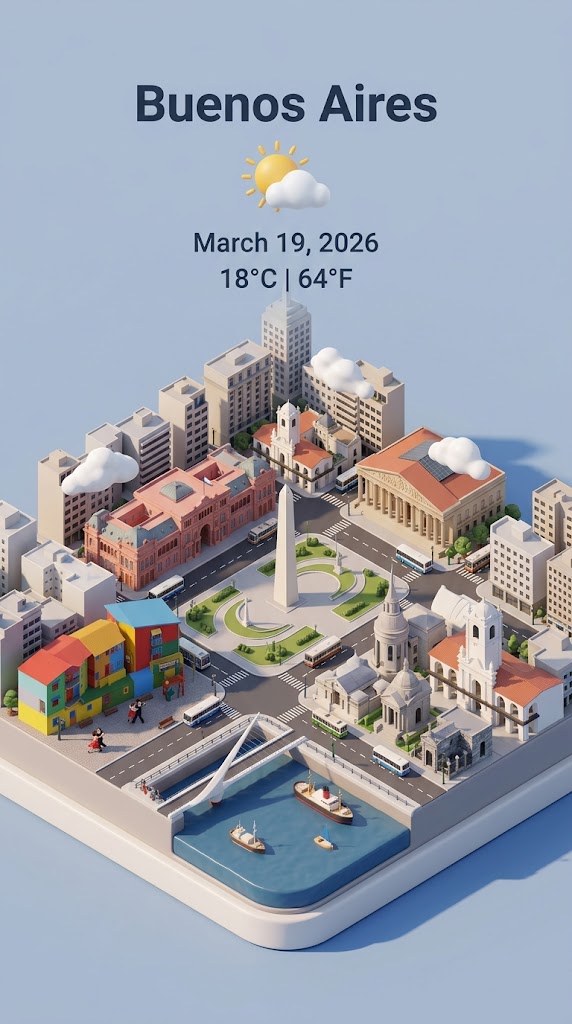
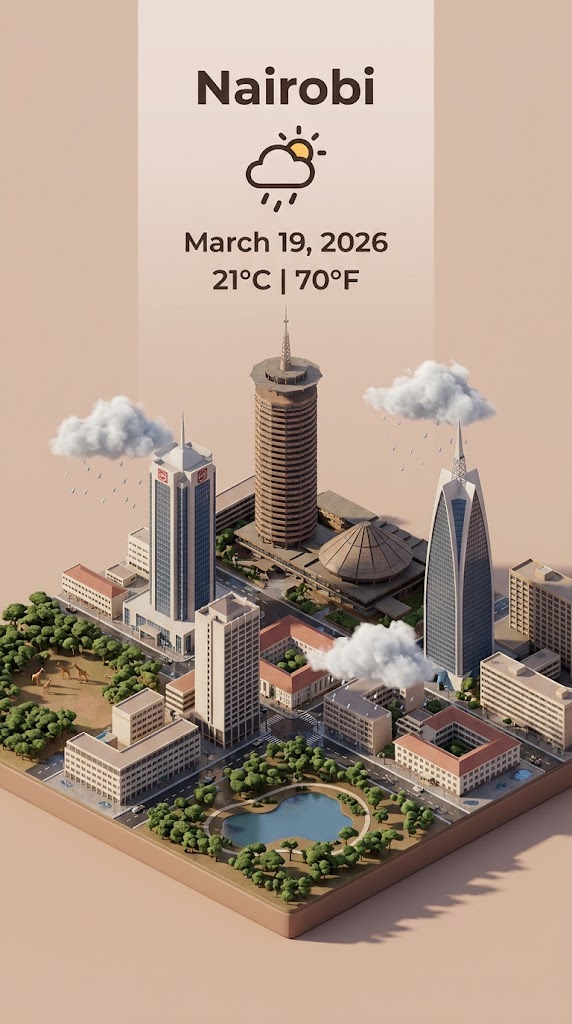
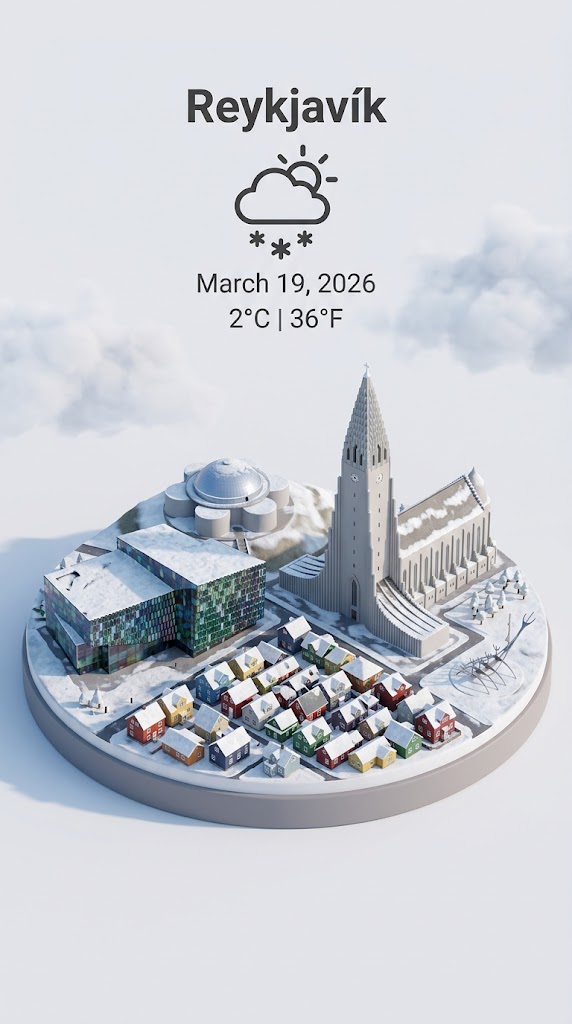
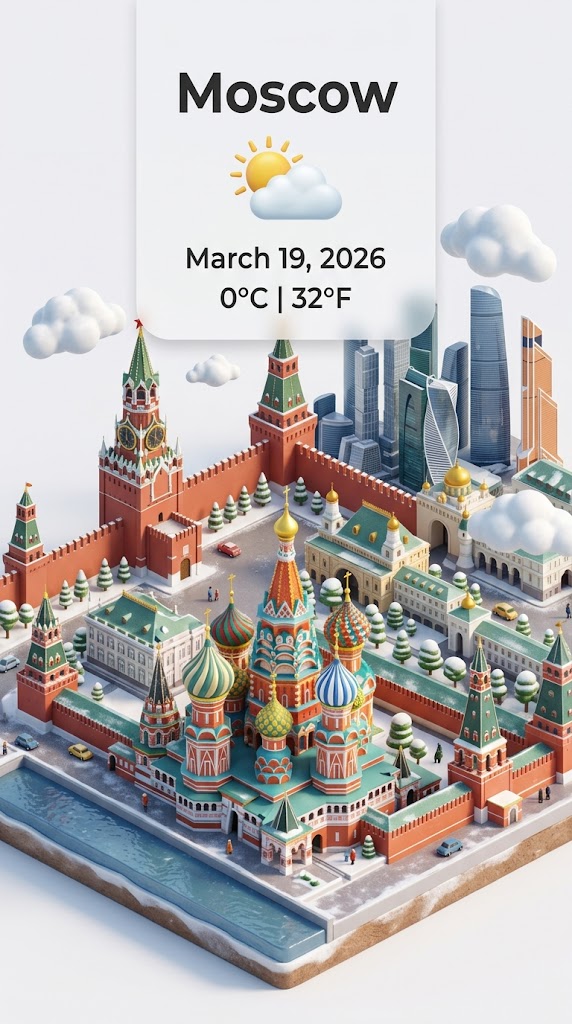
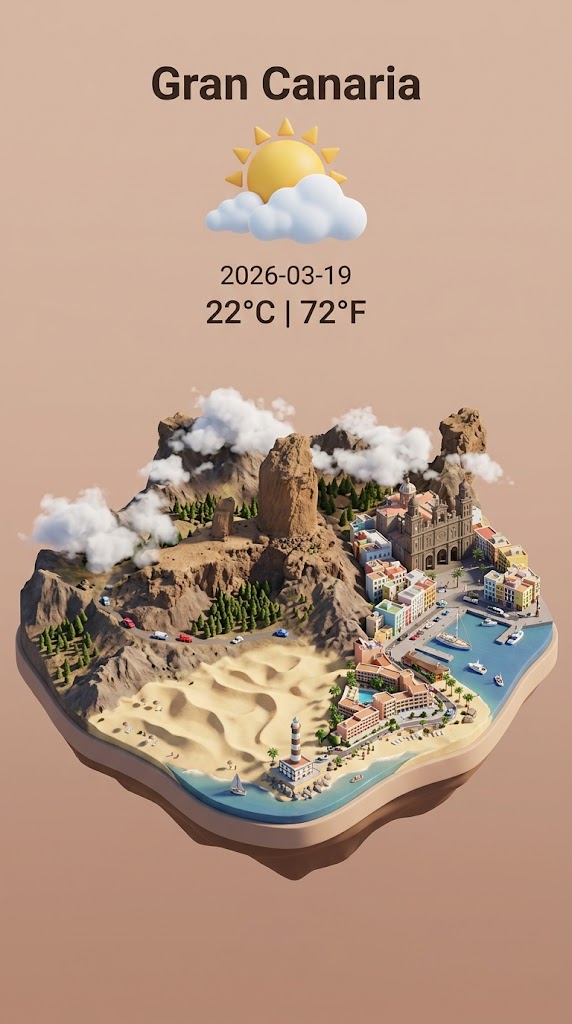
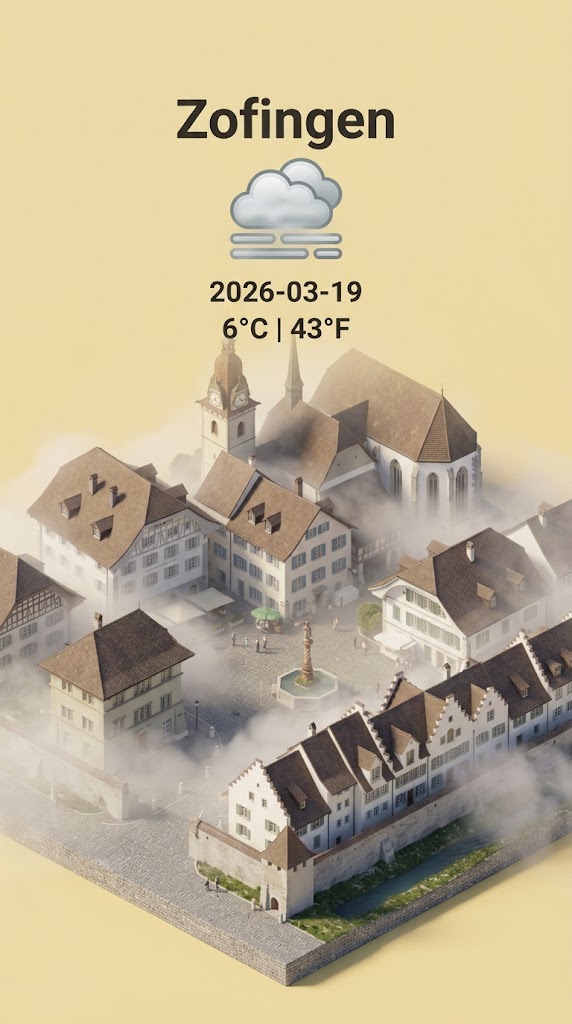
Step 1: retrieve the weather conditions and temperature of {{City: e.g. Zürich}} on the date  {{date: today}}.

Step 2:

Present a clear, 45° top-down isometric miniature 3D cartoon scene of {{City}} featuring its most iconic landmarks and architectural elements. Use soft, refined textures with realistic PBR materials and gentle, lifelike lighting and shadows.

Use the weather conditions to create an immersive atmospheric mood.

Use a clean, minimalistic composition with pastel {{Colors: [colors]}} background. At the top-center, place the title {{City}} in large bold text, a prominent weather icon beneath it, then the date {{date}} (format the date according to my locale - just the date, no time) and temperature in ° Celsius and Fahrenheit

All text must be centered with consistent spacing and may subtly overlap the tops of the buildings. Dimension: {{Image Sizes: [image_sizes]}}.
e.g. Zürich
today
[colors]
[image_sizes]
Step 1: retrieve the weather conditions and temperature of e.g. Zürich on the date  today.

Step 2:

Present a clear, 45° top-down isometric miniature 3D cartoon scene of e.g. Zürich featuring its most iconic landmarks and architectural elements. Use soft, refined textures with realistic PBR materials and gentle, lifelike lighting and shadows.

Use the weather conditions to create an immersive atmospheric mood.

Use a clean, minimalistic composition with pastel [colors] background. At the top-center, place the title e.g. Zürich in large bold text, a prominent weather icon beneath it, then the date today (format the date according to my locale - just the date, no time) and temperature in ° Celsius and Fahrenheit

All text must be centered with consistent spacing and may subtly overlap the tops of the buildings. Dimension: [image_sizes].
ตัวแปรจะอยู่ภายใน {{ และ }} และเป็นไปตามรูปแบบนี้:
ตัวเลือกสามารถอ้างอิงรายการตัวแปรที่กำหนดไว้ล่วงหน้าโดยใช้วงเล็บเหลี่ยม ตัวเลือกเหล่านี้จะแสดงเป็น[สีส้ม]และให้ค่าที่ใช้บ่อย เช่น สี โทน หรือภาษา
คุณยังสามารถระบุรายการตัวเลือกแบบอินไลน์ โดยคั่นด้วยเครื่องหมายจุลภาคได้
เคล็ดลับ: คุณไม่จำเป็นต้องใช้แอป PUCO เพื่อใช้พรอมต์เหล่านี้! เพียงคัดลอกเทมเพลตและแทนที่แต่ละส่วน {{…}} ด้วยข้อความของคุณเองโดยตรงใน ChatGPT, Claude, Gemini หรือผู้ช่วย AI อื่น ๆ